A slow laptop does not always mean you need to buy new hardware. In many cases, simple software changes can improve everyday performance. Start by disabling unnecessary startup programs so fewer apps load when Windows starts. Free up storage space by removing unused files and applications, and close background processes that are using too much RAM or CPU. Keep Windows, drivers, and important apps updated to avoid bugs and compatibility issues. You can also reduce unnecessary animations and adjust power settings for better responsiveness. These small changes can help your laptop feel faster, cleaner, and more efficient without spending money on upgrades.
1. Disable Unnecessary Startup Programs
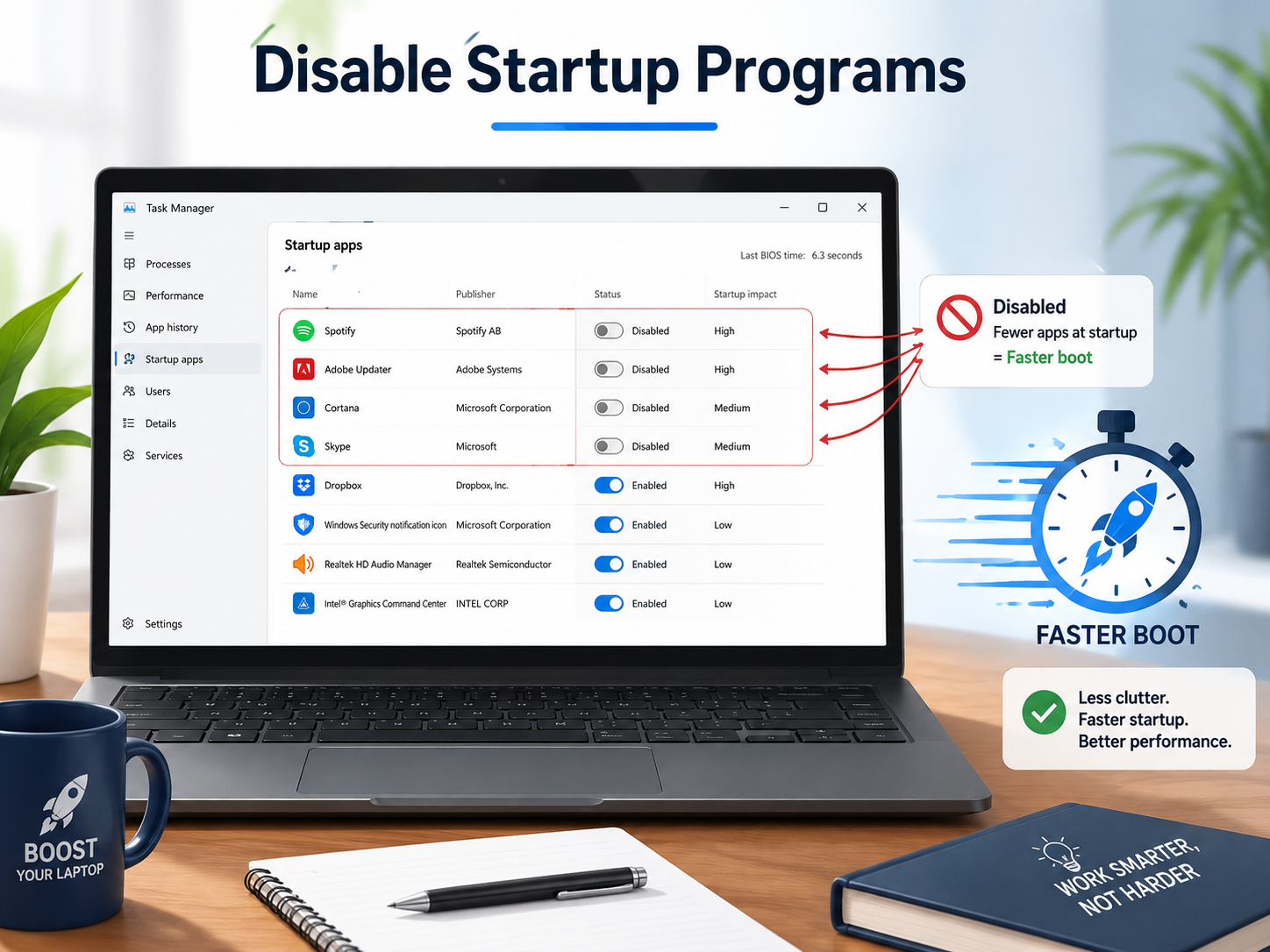
One of the easiest ways to make your laptop feel faster is to reduce the number of programs that automatically start with Windows. Many apps add themselves to the startup list during installation, and over time this can make your laptop take longer to boot.
Programs such as game launchers, messaging apps, cloud tools, update assistants, and other utilities may start in the background even when you do not need them immediately. These apps can use RAM, CPU power, and sometimes internet bandwidth.
To check startup programs in Windows, open Task Manager and go to the Startup apps section. You will see a list of programs along with their startup impact. Disable apps that you do not need every time your laptop starts.
Be careful not to disable important security software, system services, or drivers unless you know exactly what they do.
After reducing unnecessary startup apps, restart your laptop and check whether the boot process feels quicker. This change will not increase the physical speed of your processor, but it can reduce background activity and make Windows feel more responsive.
Reviewing startup apps every few months is a simple way to keep your laptop running smoothly.
2. Free Up Storage Space and Remove Unused Files
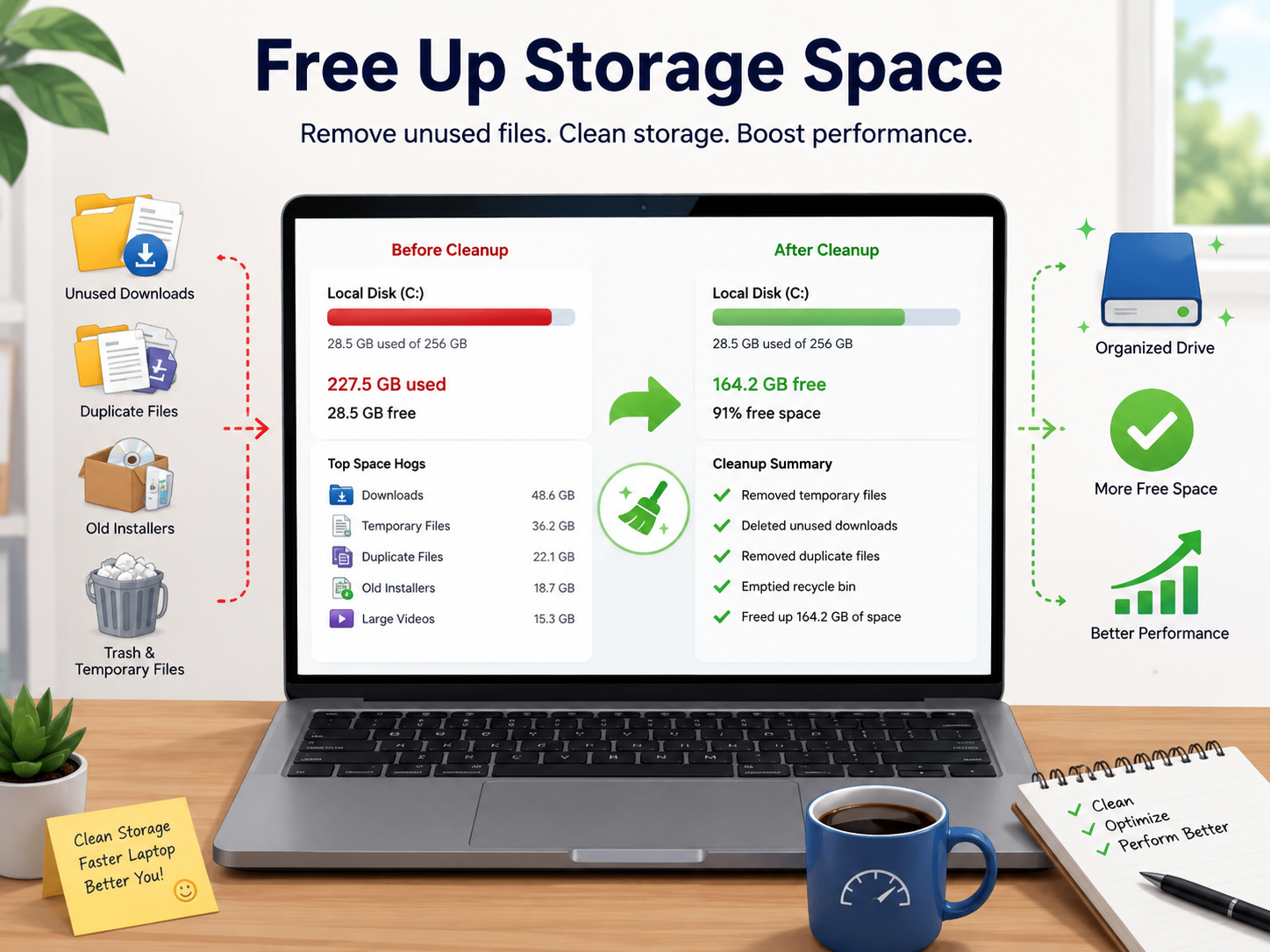
Low storage space can make a laptop feel slower, especially when the main Windows drive is nearly full. The operating system needs free space for temporary files, updates, browser data, and other background tasks.
Start by checking how much storage is available on your main drive. In Windows, open Settings > System > Storage to see what is using the most space. Large downloads, old videos, temporary files, unused applications, and duplicate files are often good places to start cleaning.
You can use Windows’ built-in Storage settings to remove temporary files safely. Also check your Downloads folder, Recycle Bin, and old installation files that you no longer need.
If you have programs or games that you have not used for months, uninstalling them can free up a significant amount of space.
Avoid deleting random files from Windows system folders, as this can cause software problems. Focus on personal files and applications you recognize.
Keeping some free space available gives Windows more room to work efficiently. It can also make updates easier to install and reduce storage-related slowdowns.
Regular storage cleanup is a simple maintenance habit that can help your laptop stay organized and responsive.
3. Reduce Background Apps and Processes
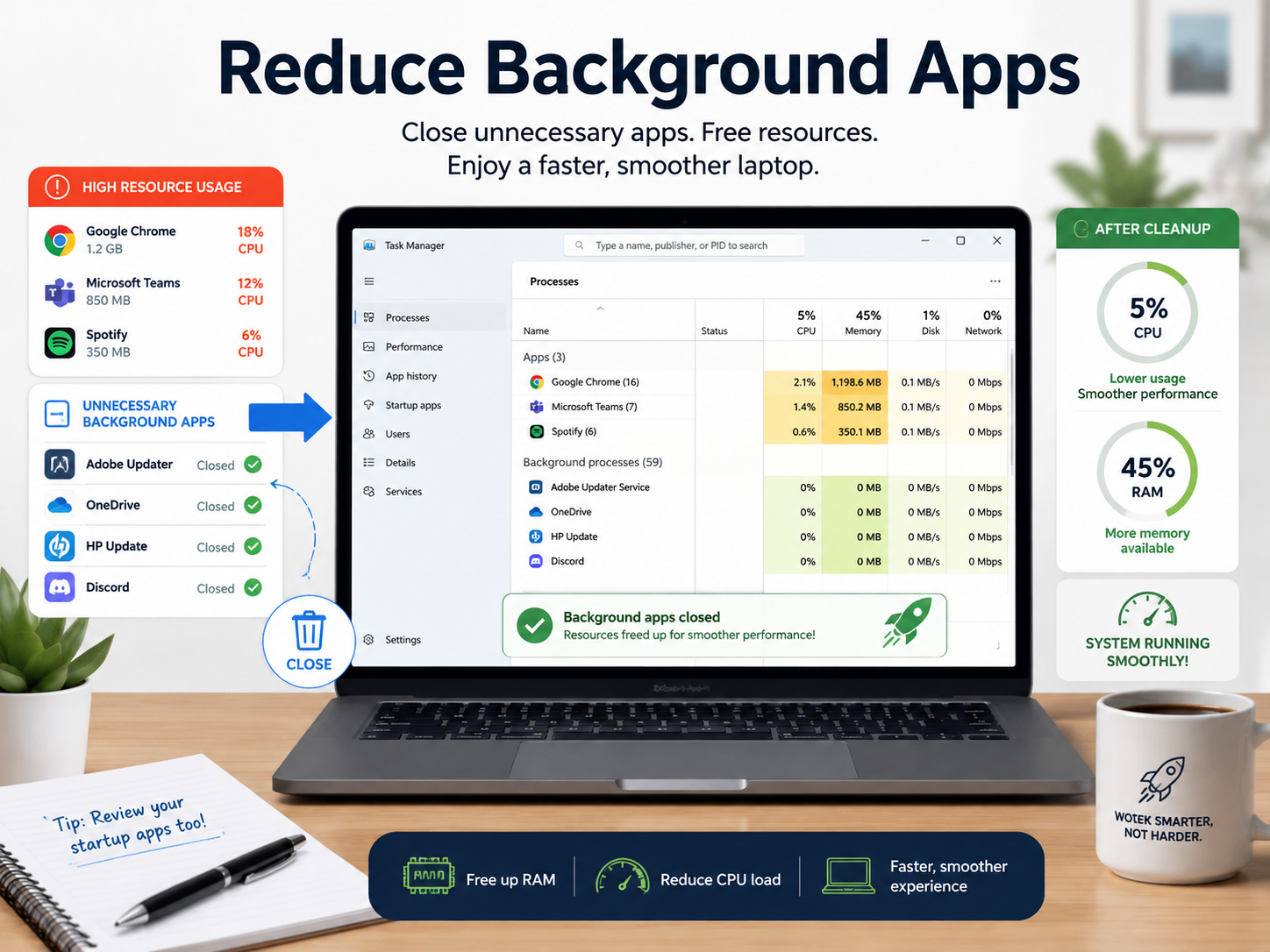
Even when you are not actively using them, some programs continue running in the background. If too many apps are active at once, they can use a large amount of RAM and CPU resources, making your laptop feel slow.
Open Task Manager and check the Processes section to see which applications are using the most CPU, memory, disk, or network resources. You may notice apps running that you forgot were open or services connected to software you rarely use.
Close programs that you no longer need. You can also review individual app settings and disable unnecessary background activity where Windows allows it.
Be careful when ending processes you do not recognize. Some belong to Windows, security software, hardware drivers, or other important system components.
Web browsers can also use a lot of memory when many tabs and extensions are open. Closing unused tabs and removing unnecessary browser extensions may make a noticeable difference, especially on laptops with limited RAM.
The goal is not to keep your Task Manager completely empty. Windows is designed to run background services. Instead, focus on unnecessary apps that are using resources without providing any useful benefit.
Reducing this extra activity can make multitasking smoother and improve everyday responsiveness.
4. Keep Windows, Drivers, and Apps Updated
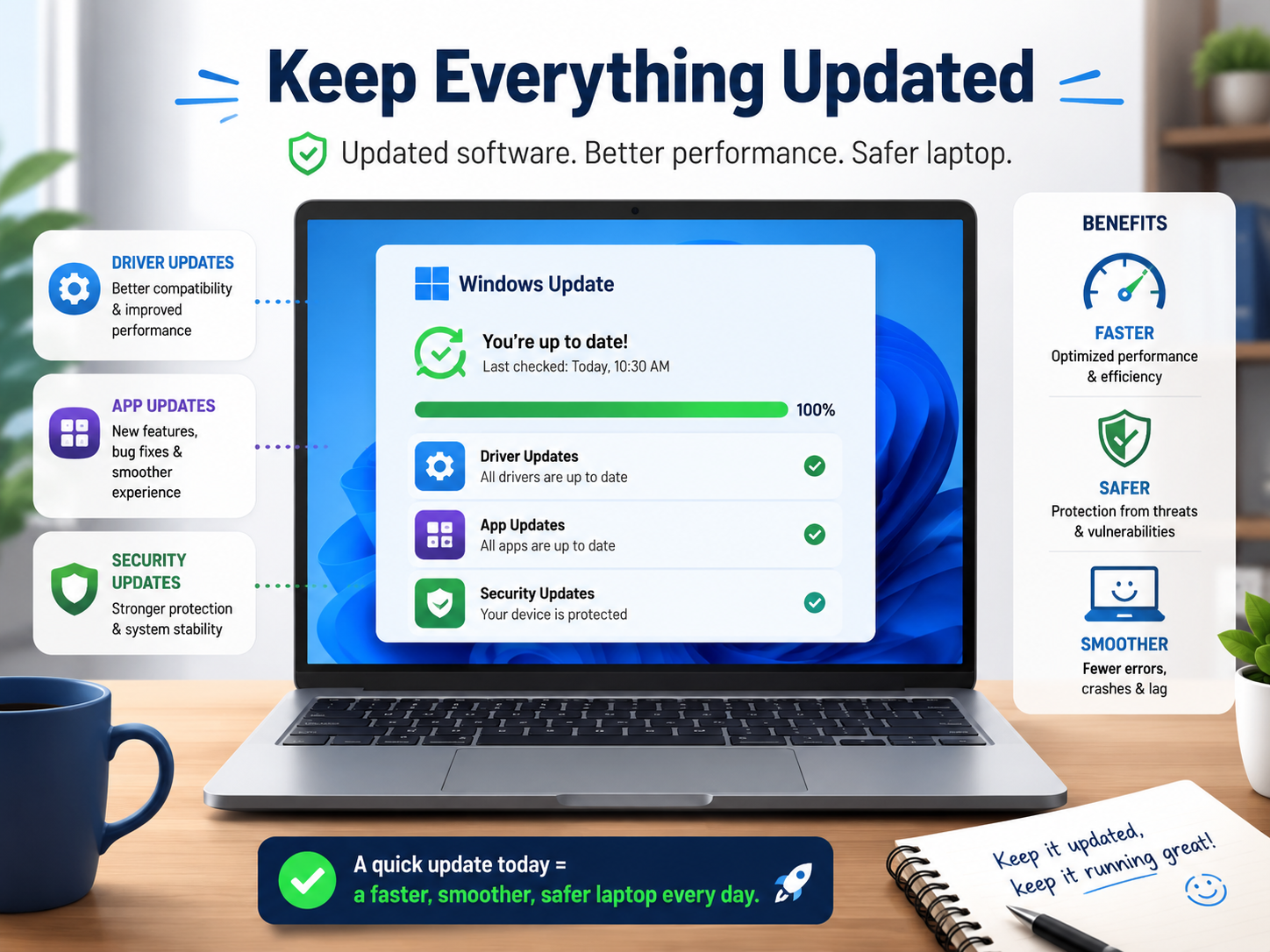
Keeping your laptop software updated can improve security, stability, and performance. Windows updates often include bug fixes, security patches, and improvements that help the operating system work more reliably.
To check for updates, open Settings > Windows Update and look for available updates. Restart your laptop when required so that important changes can be completed properly.
You should also keep commonly used applications updated, especially web browsers, productivity software, and security tools. Outdated apps may contain bugs that cause crashes, high resource usage, or compatibility problems.
Drivers are also important because they allow Windows to communicate with hardware such as graphics, Wi-Fi, audio, and storage devices. In many cases, Windows Update automatically provides suitable drivers. For graphics or other important hardware, you may also use the official manufacturer’s website or software when necessary.
Avoid downloading drivers from unknown third-party websites, as they may provide outdated or unsafe files.
Updates will not magically make an old laptop perform like a new one, but they can fix software problems that contribute to slow performance.
Keeping your system current also reduces the chance that security vulnerabilities or compatibility issues will affect your laptop over time.
5. Adjust Power and Visual Performance Settings
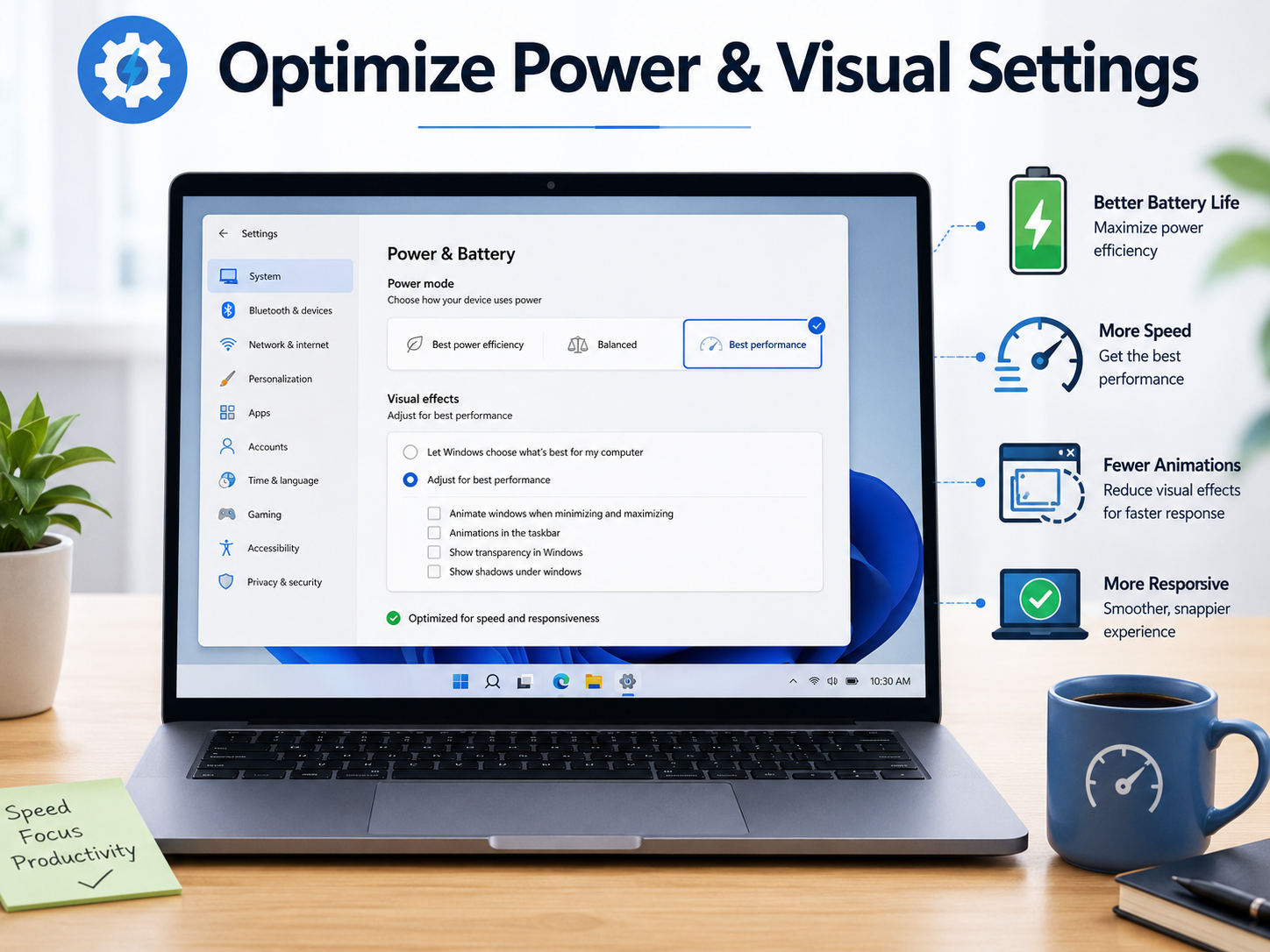
Windows includes many visual effects that make the interface look smooth, such as animations, shadows, transparency, and transition effects. These features usually work well on modern laptops, but on older or lower-powered systems they can use additional resources.
You can reduce some visual effects to make Windows feel more responsive. Search for Adjust the appearance and performance of Windows and open the Performance Options menu. From there, you can choose to reduce certain animations and effects or manually select which features you want to keep.
You should also check your laptop’s power mode. In Windows Settings, look under System > Power & battery. When your laptop is connected to a charger, a performance-focused power mode may provide faster responsiveness, although it can increase power use and heat.
When running on battery, a balanced mode is usually a better choice if you want reasonable performance without draining the battery too quickly.
Do not expect these settings to create a huge speed increase. Their main benefit is reducing unnecessary visual work and allowing the system to focus more resources on applications.
For an older laptop, combining simpler visual settings with fewer background programs can make everyday tasks feel noticeably smoother.
Disclaimer
The information provided in this article is for general educational and informational purposes only. The steps mentioned may vary depending on your laptop model, Windows version, installed software, and system configuration.
Before changing system settings, uninstalling programs, updating drivers, or removing files, make sure you understand what the option does and back up any important data. Avoid deleting unknown system files or disabling essential Windows services.
We are not responsible for data loss, software problems, reduced battery life, overheating, or other issues that may occur while following these suggestions. If your laptop continues to perform poorly or shows signs of a hardware problem, consider contacting the manufacturer or a qualified technician.