Secure your home Wi-Fi by changing the router’s default admin password and using a private network name. Enable WPA3 or WPA2-AES with a strong, unique Wi-Fi password. Keep router firmware updated, disable unused features like WPS or remote management, and regularly check connected devices for anything unfamiliar.
1. Change the Default Router Password and Wi-Fi Name
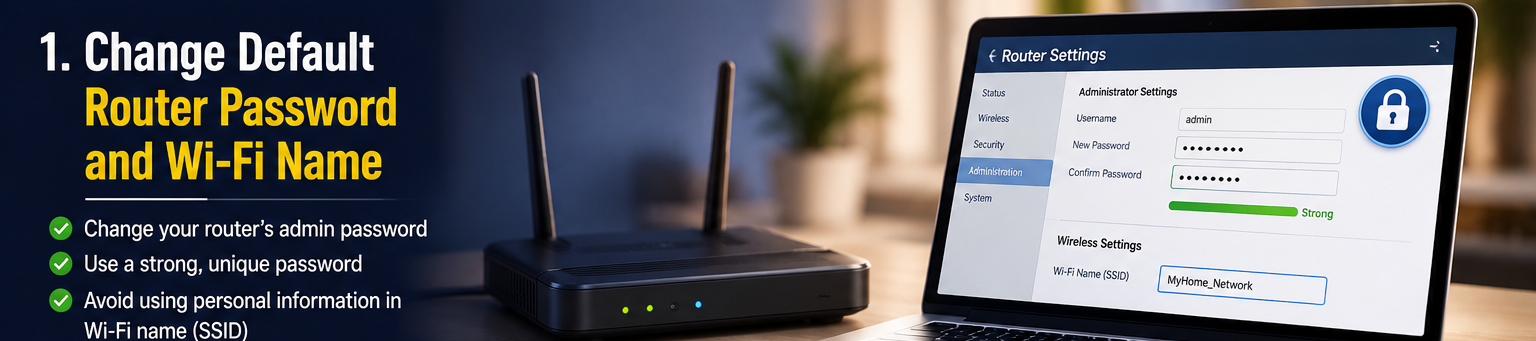
One of the first things you should do when setting up a home Wi-Fi network is change the router’s default administrator password. Many routers come with a default login that is printed on a sticker, included in the manual, or widely known for that model. If you leave the default credentials unchanged, anyone who gains access to your local network may have a better chance of opening the router settings and changing important security options.
Create a strong and unique administrator password that you do not use anywhere else. A good password should be long and difficult to guess. Avoid simple choices such as your name, phone number, date of birth, or common words.
You should also review your Wi-Fi network name, also called the SSID. The network name itself is not a password, but it is better to avoid including personal details such as your full name, apartment number, phone number, or other information that could identify you.
Changing the SSID can also make it less obvious which router model you use if the default name contains the manufacturer or device model.
Keep the router administrator password separate from the Wi-Fi password. The Wi-Fi password controls who can connect to the network, while the administrator password controls access to the router settings.
If your router allows it, disable administrator access from the internet unless you genuinely need that feature.
Taking a few minutes to change default credentials and remove unnecessary personal information from the network name can significantly improve the basic security of your home Wi-Fi setup.
2. Use Strong Wi-Fi Encryption and a Secure Password
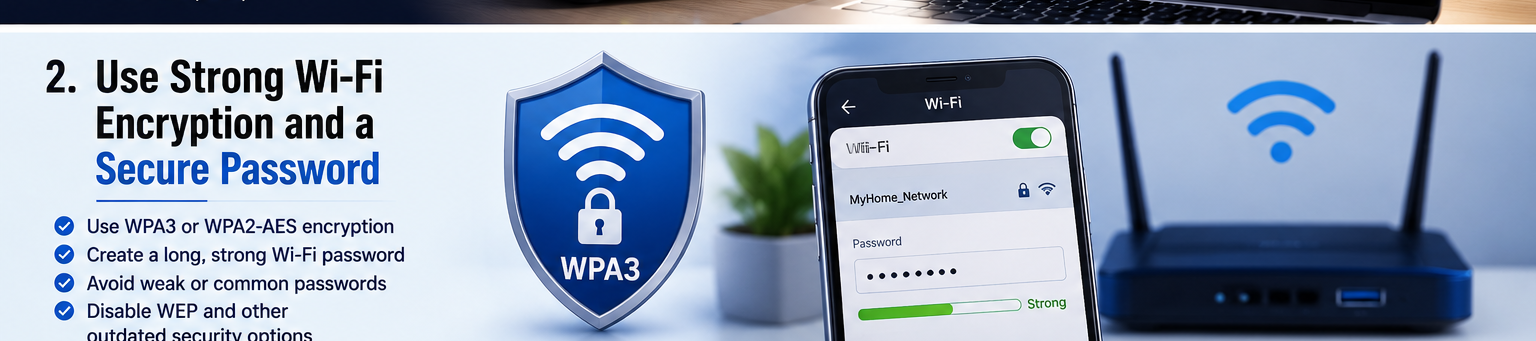
Wi-Fi encryption helps protect the data traveling between your devices and the wireless router. Using a modern security standard is one of the most important steps you can take to protect a home network.
If your router and devices support it, WPA3 is generally the preferred option for a modern home network. If WPA3 is not available, WPA2 with AES encryption is still commonly used on many devices.
Older security standards such as WEP are no longer considered suitable for protecting a modern wireless network. If your router only supports very old encryption methods, it may be worth checking whether a firmware update or newer router is available.
Your Wi-Fi password is just as important as the encryption setting. Choose a long, unique password that is difficult to guess. Avoid using your phone number, home address, family name, or simple combinations such as “password123”.
Do not reuse the same password that you use for email, social media, banking, or other important accounts.
If you regularly give visitors Wi-Fi access, consider using a guest network instead of sharing your main network password. A properly configured guest network can help keep visitors separate from computers, storage devices, printers, and smart home devices on your primary network.
Some routers provide separate security settings for 2.4 GHz and 5 GHz networks. Make sure all active wireless networks use strong encryption.
You should also periodically review who knows your Wi-Fi password. If it has been shared widely or you notice unknown devices connected to the network, changing the password can remove unauthorized users.
Strong encryption combined with a secure password creates an important barrier between your home network and people who should not have access to it.
3. Keep Router Firmware Updated and Disable Unnecessary Features
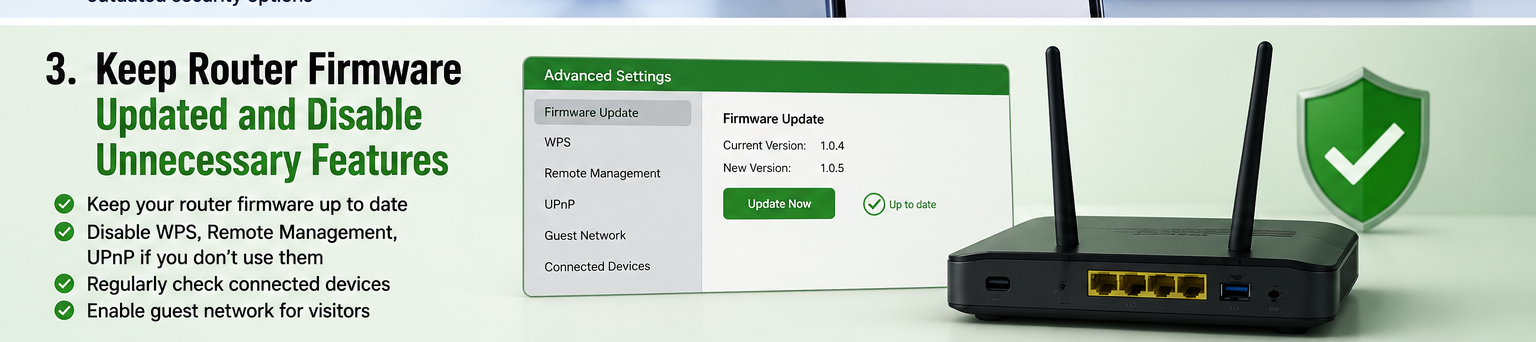
Your router is a small computer that runs its own software, usually called firmware. Manufacturers may release firmware updates to fix security vulnerabilities, improve stability, or add new features.
Check your router settings or the manufacturer’s official support page to see whether automatic updates are available. If your router supports automatic security updates, enabling them can make maintenance easier.
For routers that require manual updates, check for new firmware periodically and download it only from the official manufacturer source. Avoid installing firmware files from random websites.
You should also review features that may increase exposure if they are not needed. WPS, for example, is designed to make connecting devices easier, but if you never use it, disabling it can reduce unnecessary access methods.
Remote management should usually be disabled unless you specifically need to manage your router while away from home. If enabled, make sure it is protected with strong authentication and configured according to the manufacturer’s recommendations.
UPnP can be convenient for gaming consoles and other applications, but it automatically allows devices to request network changes. If none of your devices need it, you can consider disabling it.
Guest Wi-Fi should also be disabled when you do not use it, or protected with its own strong password when enabled.
Finally, check the router’s connected-device list from time to time. You should recognize the phones, computers, televisions, cameras, and smart devices shown there. An unknown device does not always mean your network has been hacked, but it is worth investigating.
Keeping firmware current and disabling unused services helps reduce unnecessary entry points and keeps your home network easier to manage securely.
Disclaimer
The information provided in this article is for general educational and informational purposes only. Router menus, security options, encryption standards, firmware update methods, and networking features can vary depending on the manufacturer, model, internet provider, and connected devices.
Changing router settings incorrectly may temporarily disconnect devices or affect services such as gaming, smart home equipment, printers, or remote access. Before making major changes, consider reviewing your router’s official documentation and saving or recording your current settings.
No home network can be guaranteed to be completely secure. Strong passwords, modern encryption, firmware updates, and careful configuration can reduce risk but cannot eliminate every possible security threat.
We are not responsible for internet outages, device connection problems, data loss, configuration errors, or security incidents that may occur while following this guide. If you are unsure about a router setting or believe your network has been compromised, consider contacting your internet service provider, router manufacturer, or a qualified network security professional.