Protecting your phone from malicious apps starts with a few simple habits. Always download apps from trusted sources such as the Google Play Store, and avoid random APK websites or suspicious links. Before installing any app, check the permissions it requests and make sure they match its purpose. Reading recent reviews, ratings, and developer details can also help you spot fake or unsafe apps. Keep Android and all installed apps updated so you receive the latest security fixes. Finally, use built-in security tools like Google Play Protect and quickly remove any app that causes unusual battery drain, pop-ups, overheating, or suspicious activity.
1. Download Apps Only from Trusted Sources
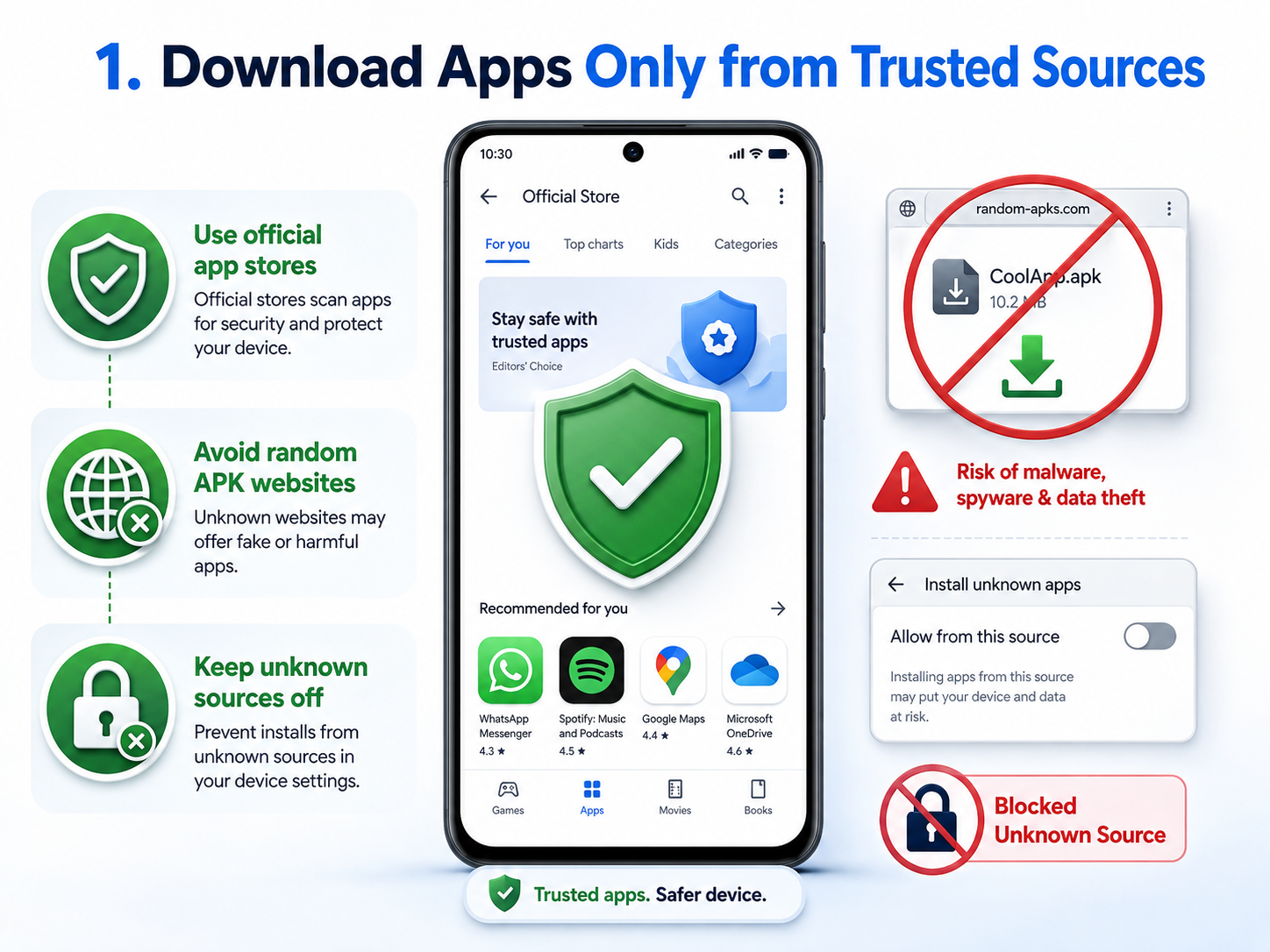
One of the best ways to protect your phone from malicious apps is to download applications only from trusted sources. For most Android users, the Google Play Store is the safest place to start because apps are checked for security issues before and after they are published.
Downloading APK files from random websites can be risky. Some websites may offer modified or cracked versions of popular apps, but these files can contain malware, spyware, or unwanted advertising software. A malicious app may try to access your personal information, track your activity, or use your phone in the background without your knowledge.
If an app is not available on the official store, make sure you fully trust the developer and the source before installing it. Avoid download links received through unknown messages, pop-up ads, or suspicious websites.
You should also keep the option to install apps from unknown sources disabled unless you genuinely need it. This reduces the chance of accidentally installing unsafe software.
No app source can guarantee complete safety, but using official stores and trusted developers greatly reduces the risk. Taking a few extra seconds to verify where an app comes from can help protect your phone, accounts, and personal data.
2. Check App Permissions Before Installing
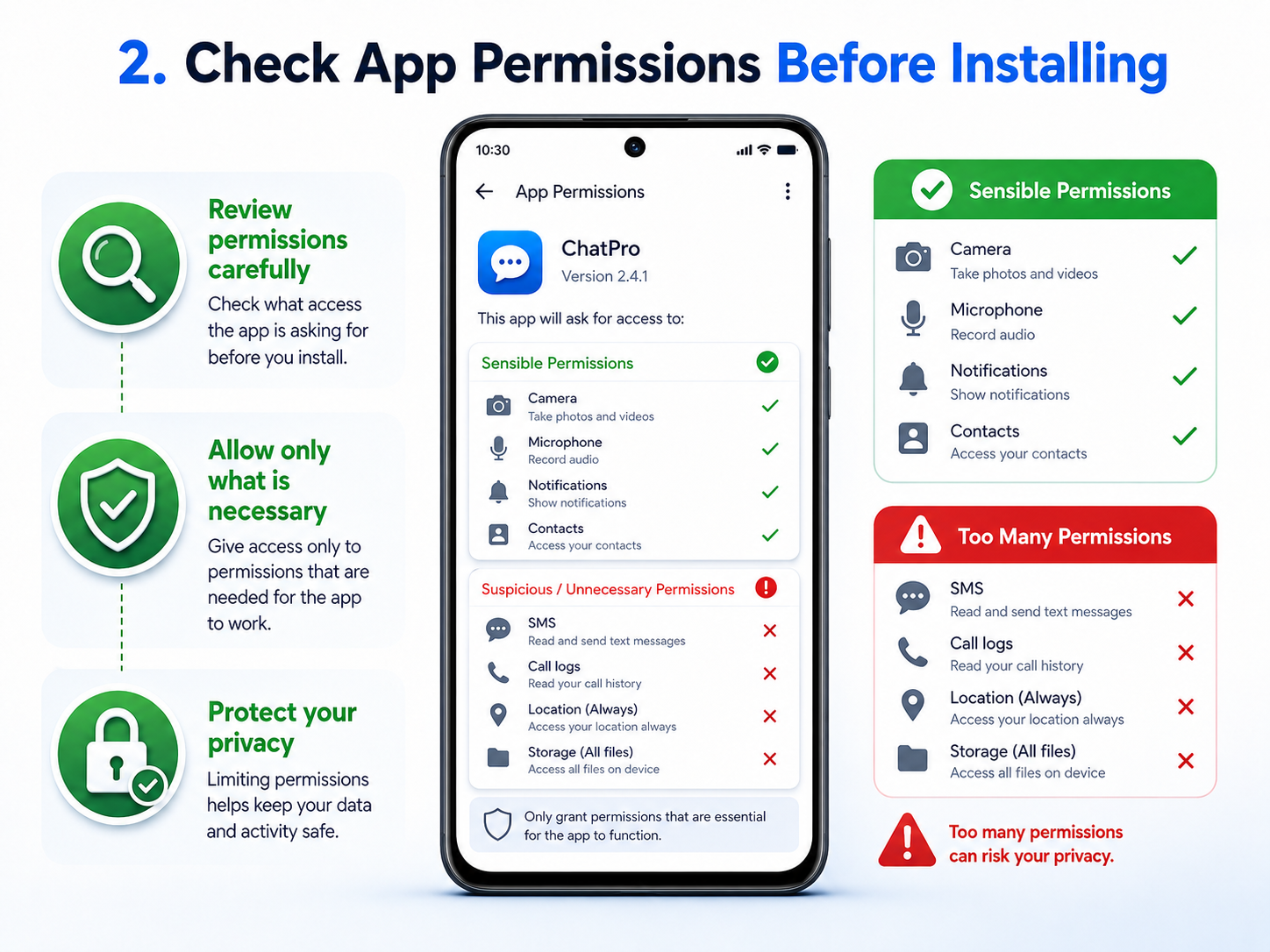
App permissions tell you what information and features an application can access on your phone. Paying attention to these permissions can help you identify apps that request more access than they actually need.
For example, a messaging app may reasonably need access to your microphone, camera, or contacts. However, a basic calculator or flashlight app asking for access to your contacts, location, microphone, and text messages should make you think twice.
Before installing an app, review the permissions it requests. After installation, you can usually manage them by opening Settings > Apps > Permissions or a similar section, depending on your Android version.
Only allow permissions that are necessary for the app’s main features. Android also lets you grant some permissions only while the app is in use, which can provide better privacy.
Keep in mind that not every unusual permission automatically means an app is malicious. Some features may genuinely require additional access. The important thing is to consider whether the request makes sense.
Regularly reviewing app permissions is also a good habit. If an app no longer needs access to your camera, microphone, or location, you can remove that permission.
Being selective with permissions helps reduce unnecessary access to your personal information.
3. Read Reviews, Ratings, and Developer Details
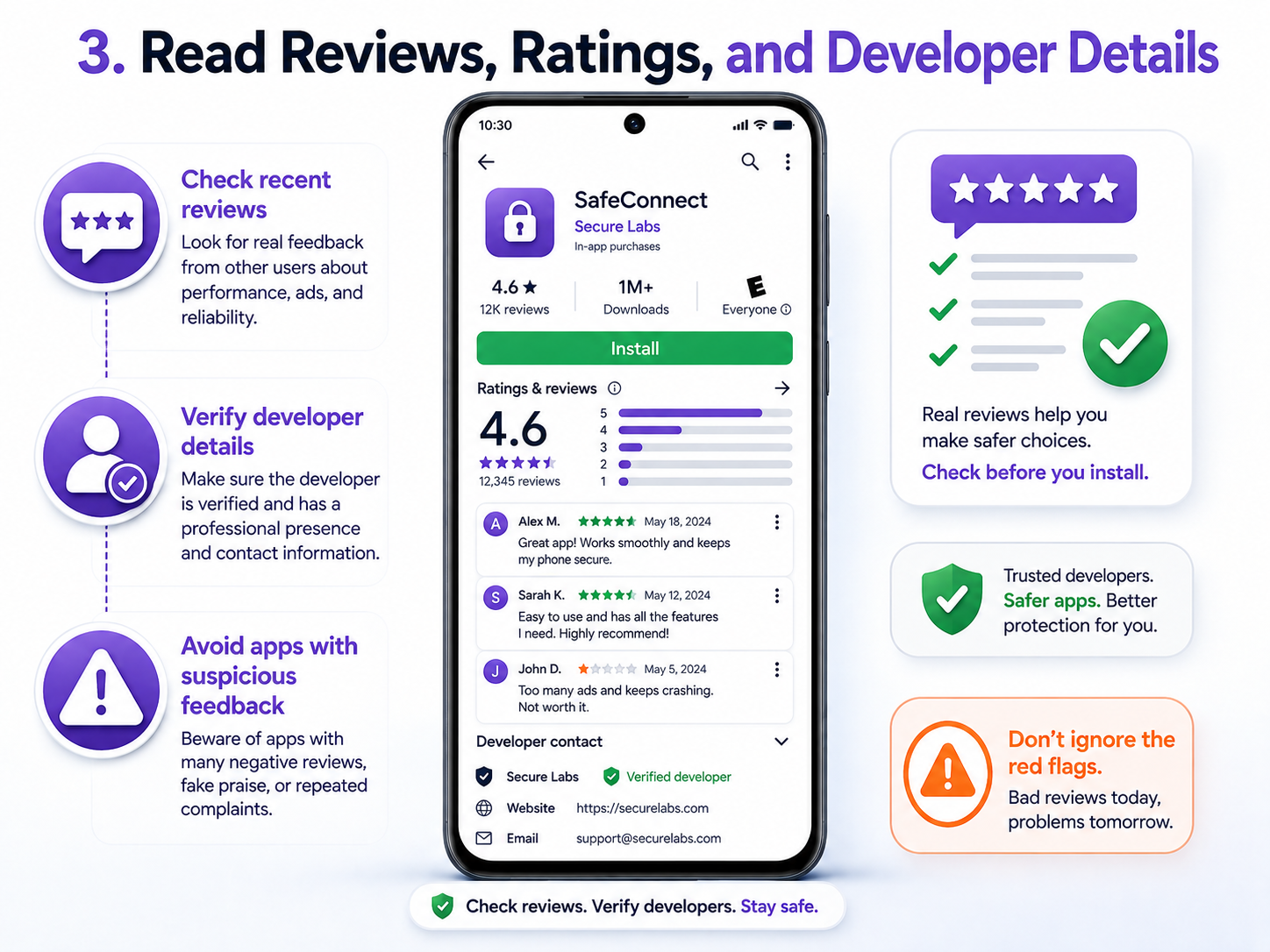
Before installing an unfamiliar app, take a few minutes to check its reviews, ratings, and developer information. These details can help you spot potential warning signs before the app reaches your phone.
Start by looking at the overall rating, but do not rely on the rating alone. Read several recent reviews to see what real users are saying. Complaints about unexpected ads, strange permissions, subscription charges, battery drain, or suspicious behavior should be taken seriously.
You should also check the developer name. Trusted developers often have other established apps, an official website, and clear contact information. Be careful with apps that copy the name, logo, or design of a popular service while being published by an unknown developer.
The number of downloads and the app’s update history can provide additional context. An app with regular updates may indicate active maintenance, while an abandoned app may not receive important security fixes.
Remember that reviews can sometimes be fake, so look for patterns rather than trusting a single positive or negative comment.
Checking these details does not take long, but it can help you avoid fake, low-quality, or potentially harmful apps. When something about an app feels suspicious, choosing a more established alternative is usually safer.
4. Keep Android and Apps Updated
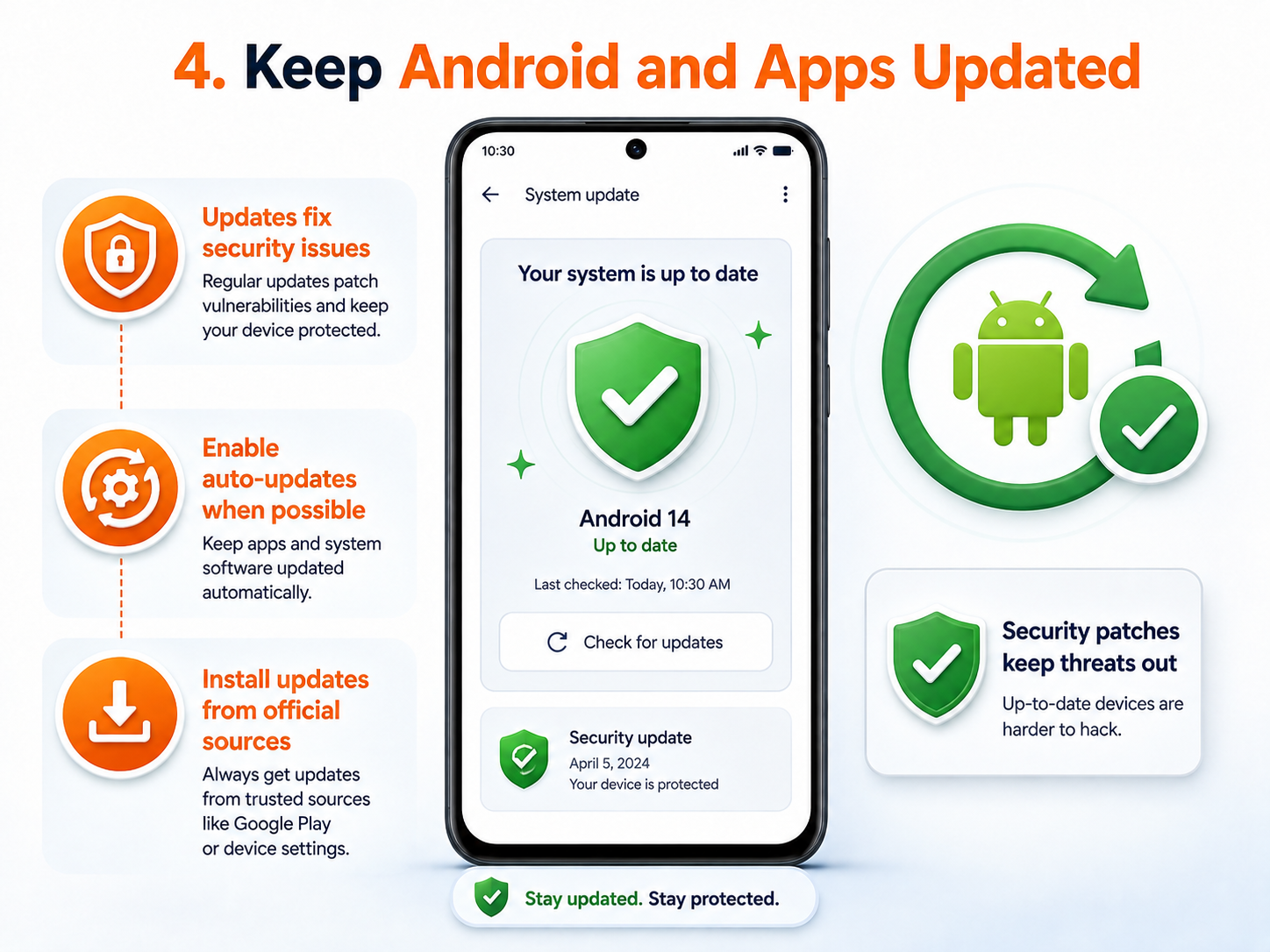
Keeping Android and your installed apps updated is an important part of mobile security. Software updates often include fixes for security vulnerabilities that could otherwise be used by malicious apps or attackers.
To check for system updates, open your phone’s Settings and look for options such as System Update, Software Update, or Security Update. The exact location may vary depending on your device manufacturer.
You should also keep apps updated through the Google Play Store or the official store you use. Developers regularly release updates to fix bugs, improve compatibility, and address security problems.
Using outdated software for a long time can increase your exposure to known vulnerabilities. Even if your phone appears to work normally, security weaknesses may still exist in older versions.
Whenever possible, enable automatic updates for important apps and system components. This can help ensure you receive security patches without needing to check manually.
Only install updates from trusted or official sources. Avoid websites that claim to offer unofficial Android updates or modified app versions.
Updates cannot protect against every threat, but they close many known security gaps. Keeping your phone and apps current is one of the simplest ways to make it harder for malicious software to cause problems.
5. Use Built-In Security and Remove Suspicious Apps Quickly
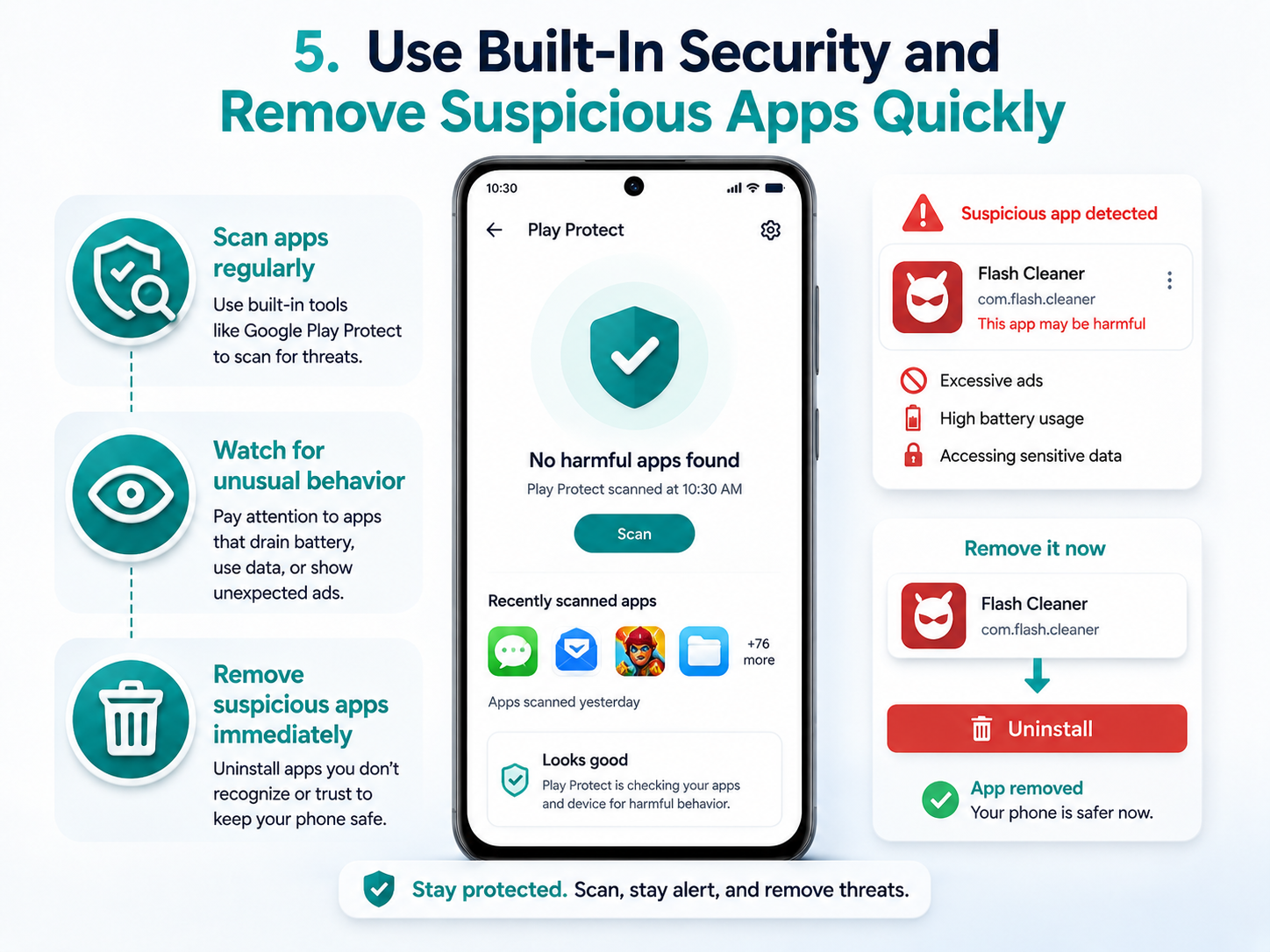
Modern Android phones include built-in security features that can help detect potentially harmful applications. One useful tool is Google Play Protect, which regularly scans apps installed on your device and may warn you about suspicious software.
You can usually find Play Protect inside the Google Play Store by tapping your profile picture and selecting Play Protect. From there, you can check the current security status and run a scan.
It is also important to pay attention to unusual behavior on your phone. Warning signs may include sudden battery drain, excessive mobile data usage, unexpected pop-up ads, unexplained overheating, or apps appearing that you do not remember installing.
If these problems begin after installing a particular app, review its permissions and consider uninstalling it. You can also check your installed apps list for anything unfamiliar.
Avoid relying on random “cleaner” or “security booster” apps from unknown developers. Some of these apps may show misleading warnings or create additional privacy problems.
If you believe an important account may have been exposed, change its password from a trusted device and review recent login activity.
Built-in security tools work best when combined with careful app choices. Acting quickly when something looks suspicious can help prevent a small issue from becoming a bigger security problem.
Disclaimer
The information provided in this article is for general educational and informational purposes only. Mobile security risks, app permissions, Android settings, and security features may vary depending on your device model, Android version, and app source.
Always download apps from trusted sources and review permissions carefully before installation. If you suspect that your phone has been infected with malicious software, avoid entering sensitive information and consider contacting your device manufacturer, mobile service provider, or a qualified technician.
We are not responsible for data loss, account issues, device problems, or other damages that may occur while following the information in this guide. Always back up important data and use official security tools whenever possible.