RAM plays an important role in how smoothly your computer handles apps, browser tabs, games, and multitasking. It works as temporary memory that gives the processor quick access to active data. For basic daily use, 8GB can be enough, while 16GB is a better choice for heavier multitasking and modern software. Gamers and professional users may benefit from 32GB or more depending on their workload. When upgrading RAM, you should also check the DDR type, memory speed, available slots, and system compatibility. Choosing the right amount of RAM helps improve responsiveness without spending money on unnecessary capacity.
1. What Is RAM and How Does It Work?
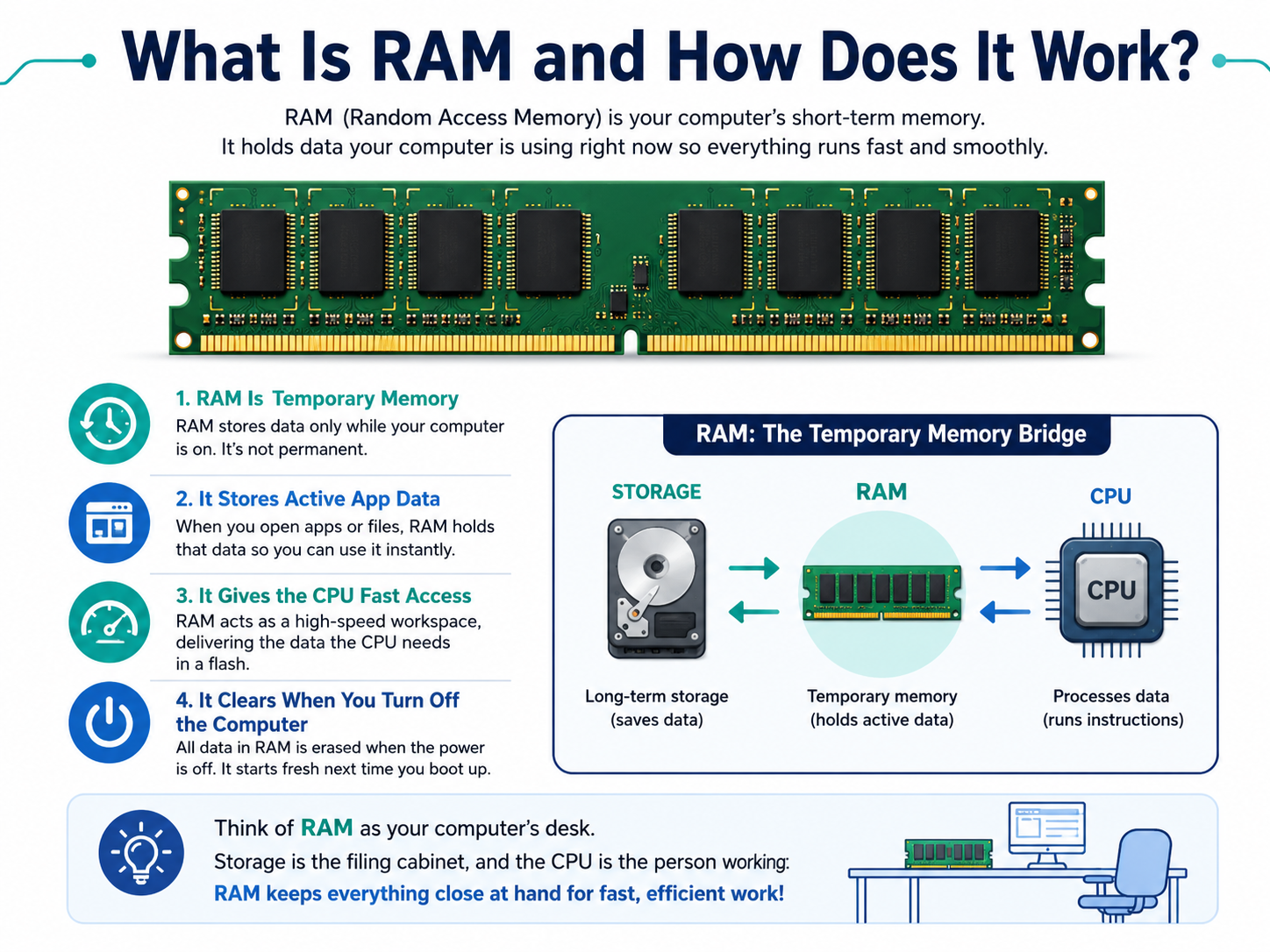
RAM stands for Random Access Memory. It is a type of temporary memory that your computer uses to store data that is currently needed by the operating system and running applications. Unlike a hard drive or SSD, RAM does not permanently store your files. Its contents are cleared when the computer is turned off or restarted.
When you open a browser, game, document, or other program, some of the data needed by that application is loaded into RAM. This allows the processor to access information much faster than it could from normal storage.
Think of RAM like a working desk. The larger the desk, the more files and tools you can keep open at the same time without constantly putting things away. If the desk becomes too crowded, you have to keep moving items back and forth, which slows down your work.
The same thing happens on a computer. If available RAM becomes too low, the system may start using slower storage as temporary memory. This can make apps feel less responsive.
RAM plays an important role in everyday performance, especially when you run several programs or browser tabs at the same time.
2. How RAM Affects Computer Performance
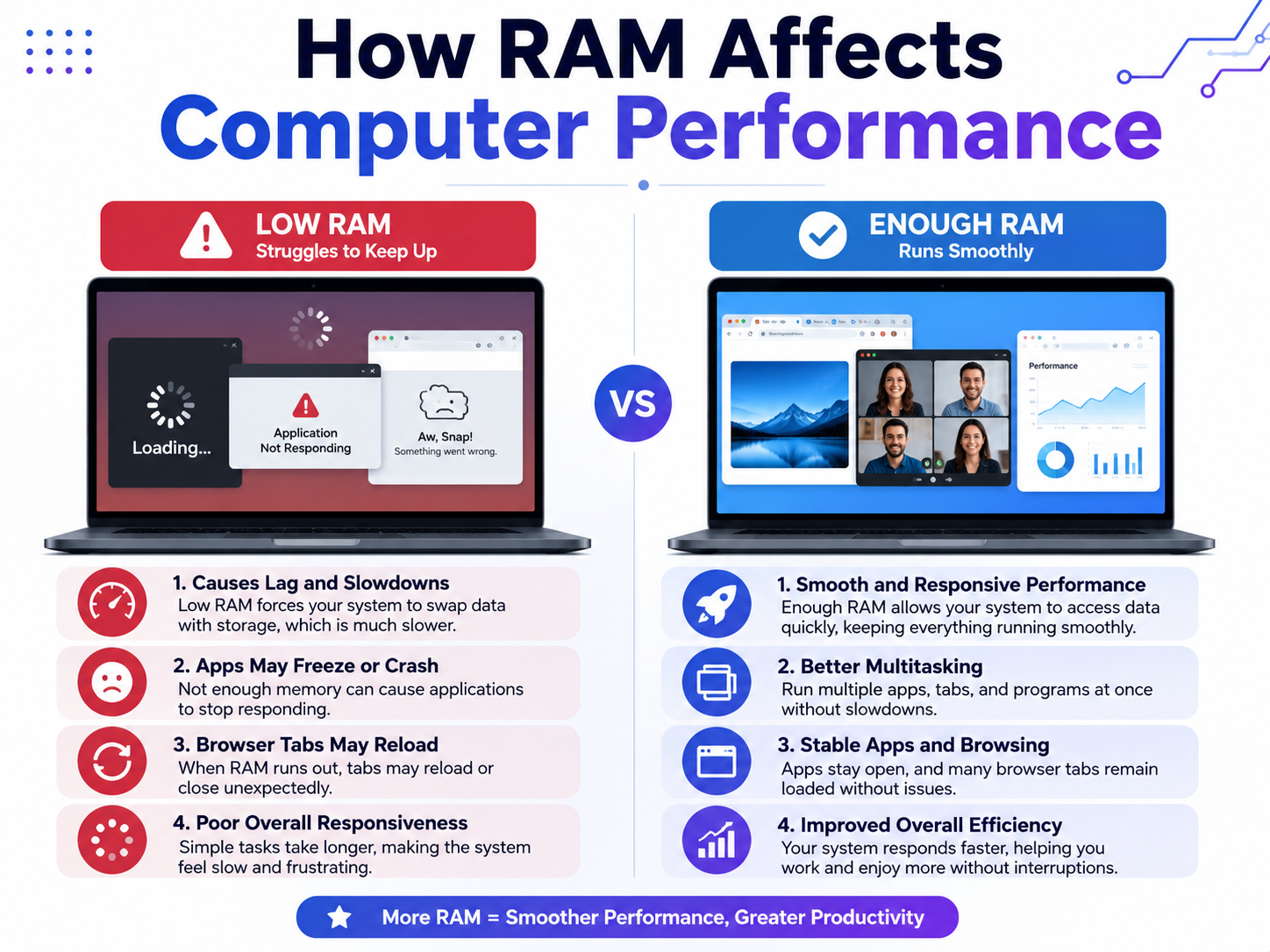
RAM can have a noticeable effect on how smoothly your computer works, especially when multitasking. Every running application uses some amount of memory, and the more programs you open, the more RAM your system needs.
If your computer has enough RAM, you can switch between applications quickly and keep several browser tabs open without much delay. Programs are able to keep the data they need readily available, which helps the system feel responsive.
When RAM becomes full, the computer may move some data to a temporary area on the SSD or hard drive. This process is much slower than using RAM directly. As a result, you may notice apps taking longer to respond, browser tabs reloading, stuttering, or delays when switching between programs.
Adding more RAM can help if insufficient memory is actually the cause of the slowdown. However, RAM is only one part of overall performance. A slow processor, old storage drive, overheating, or poorly optimized software can also make a computer feel slow.
It is therefore important to check memory usage before assuming that more RAM will solve every performance problem.
For users who regularly multitask, having enough RAM can make everyday computing much smoother and more comfortable.
3. How Much RAM Do You Need for Daily Use?
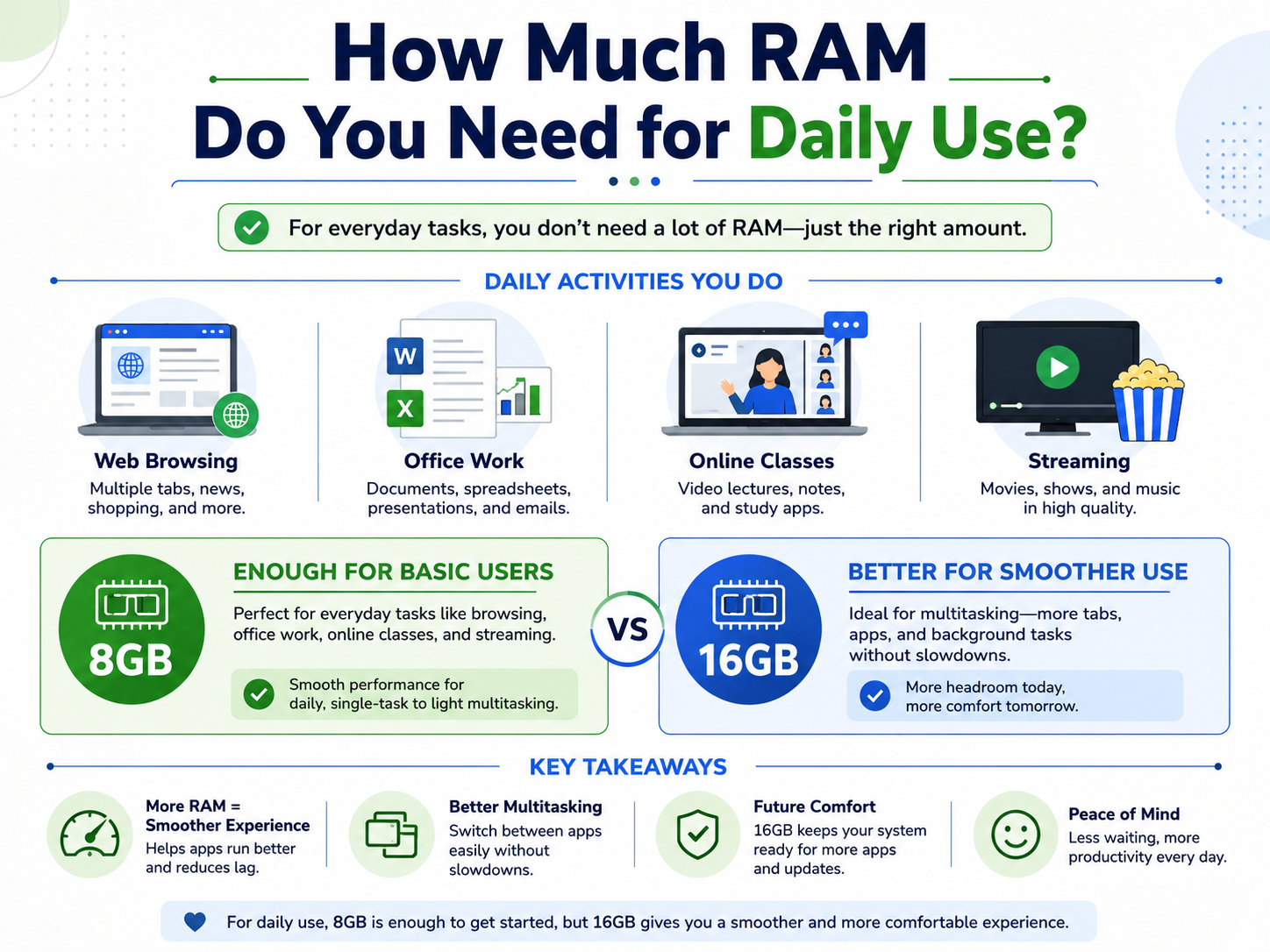
The amount of RAM you need depends on how you use your computer. For basic everyday tasks, you usually do not need an extreme amount of memory.
For light browsing, email, document editing, online classes, and video streaming, 8GB of RAM can still be enough for many users. It provides enough memory for common tasks without making the system unnecessarily expensive.
If you regularly keep many browser tabs open, use office applications together, attend video meetings, or switch between several programs throughout the day, 16GB is often a more comfortable choice.
Modern browsers and applications can use a significant amount of memory, so having extra RAM gives the computer more room to multitask without relying heavily on slower storage.
For most general users, 16GB provides a good balance between performance, cost, and future usability. It can also help the computer remain comfortable to use as software requirements increase over time.
More RAM does not automatically make every task faster. If your normal workload only uses a small amount of memory, increasing from 16GB to 32GB may not create a noticeable difference.
Choose RAM based on your actual needs rather than simply buying the highest amount available.
4. How Much RAM Do You Need for Gaming and Heavy Work?
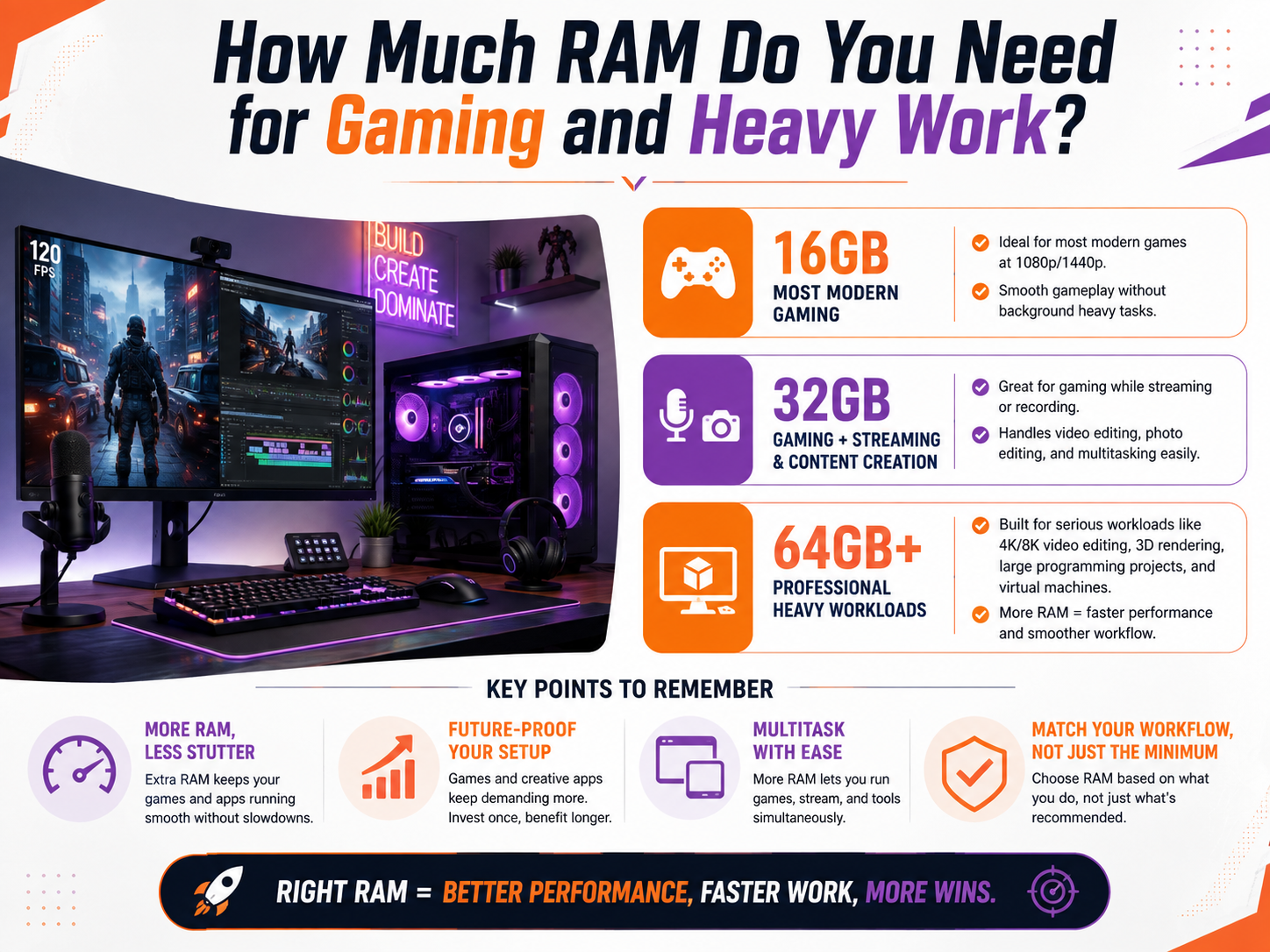
Gaming, video editing, graphic design, programming, and other demanding tasks usually require more RAM than basic browsing or office work.
For modern gaming, 16GB of RAM is a common starting point and is enough for many games. It also gives you room to run a browser, voice chat, or game launcher in the background.
If you play demanding games while streaming, recording gameplay, or running several other applications, 32GB can provide more breathing room. It may also be useful for newer games that use large textures and background assets.
Professional workloads can require even more memory. Video editing, 3D rendering, large software projects, virtual machines, and high-resolution photo editing can benefit from 32GB or 64GB, depending on the size of the project.
The important thing is to match RAM capacity to your workload. Installing a huge amount of memory will not improve performance if your applications never use it.
You should also consider the other parts of your system. Gaming performance, for example, depends heavily on the graphics card and processor as well as RAM.
For most gamers, 16GB or 32GB is a practical range. Professionals working with heavy creative or technical software may need more depending on their projects.
5. RAM Speed, DDR Type, and Upgrade Considerations
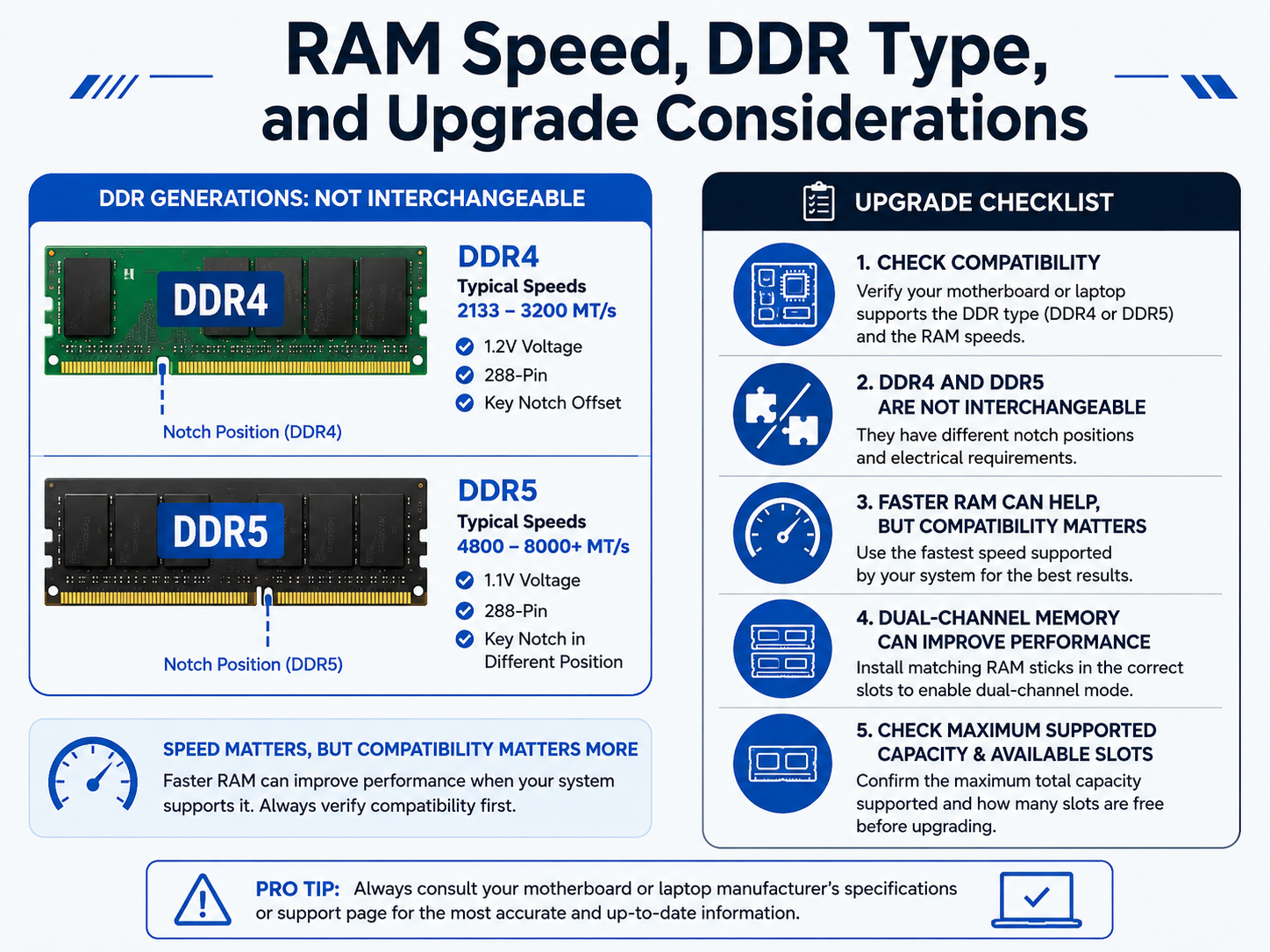
RAM capacity is important, but other factors such as memory speed, DDR generation, and compatibility also matter when choosing or upgrading RAM.
Modern computers commonly use DDR4 or DDR5 memory. These generations are physically and electrically different, so you cannot usually install DDR5 memory in a motherboard designed only for DDR4.
Memory speed also affects how quickly data can be transferred. However, the real-world difference depends on the processor, motherboard, and type of workload.
Another important factor is dual-channel operation. Using two compatible memory modules, such as two 8GB sticks instead of one 16GB stick, can improve memory bandwidth on many systems.
Before upgrading, check the maximum amount of RAM your laptop or motherboard supports. You should also verify the required DDR type, supported speeds, available memory slots, and whether the RAM is soldered onto the motherboard.
Some thin laptops have non-upgradable memory, so this is especially important to check before purchasing.
It is usually best to use matching memory modules when possible, as mixed RAM can sometimes run at the speed of the slower module.
A good RAM upgrade is not just about buying more capacity. Compatibility, configuration, and your actual workload are equally important when choosing the right memory.
Disclaimer
The information provided in this article is for general educational and informational purposes only. RAM requirements can vary depending on your operating system, software, games, workload, and computer hardware.
Before upgrading RAM, always check your laptop or motherboard specifications for supported DDR type, maximum capacity, memory speed, and available slots. Installing incompatible memory may cause performance problems or prevent the system from starting properly.
We are not responsible for hardware damage, data loss, compatibility issues, or other problems that may occur while following the information in this guide. If you are unsure about upgrading your computer memory, consider contacting the device manufacturer or a qualified computer technician.