Recovering deleted files on Windows is often possible if you act carefully. Start by checking the Recycle Bin, where recently deleted files may still be available for easy restoration. If the file is missing, avoid using the same drive because new data may overwrite it. Next, check File History, OneDrive, or Previous Versions for an older backup. If no backup is available, use trusted file recovery software and save recovered files to a different drive. If the storage device is damaged, making unusual noises, or contains very important data, stop further attempts and consider professional data recovery help.
1. Check the Recycle Bin First
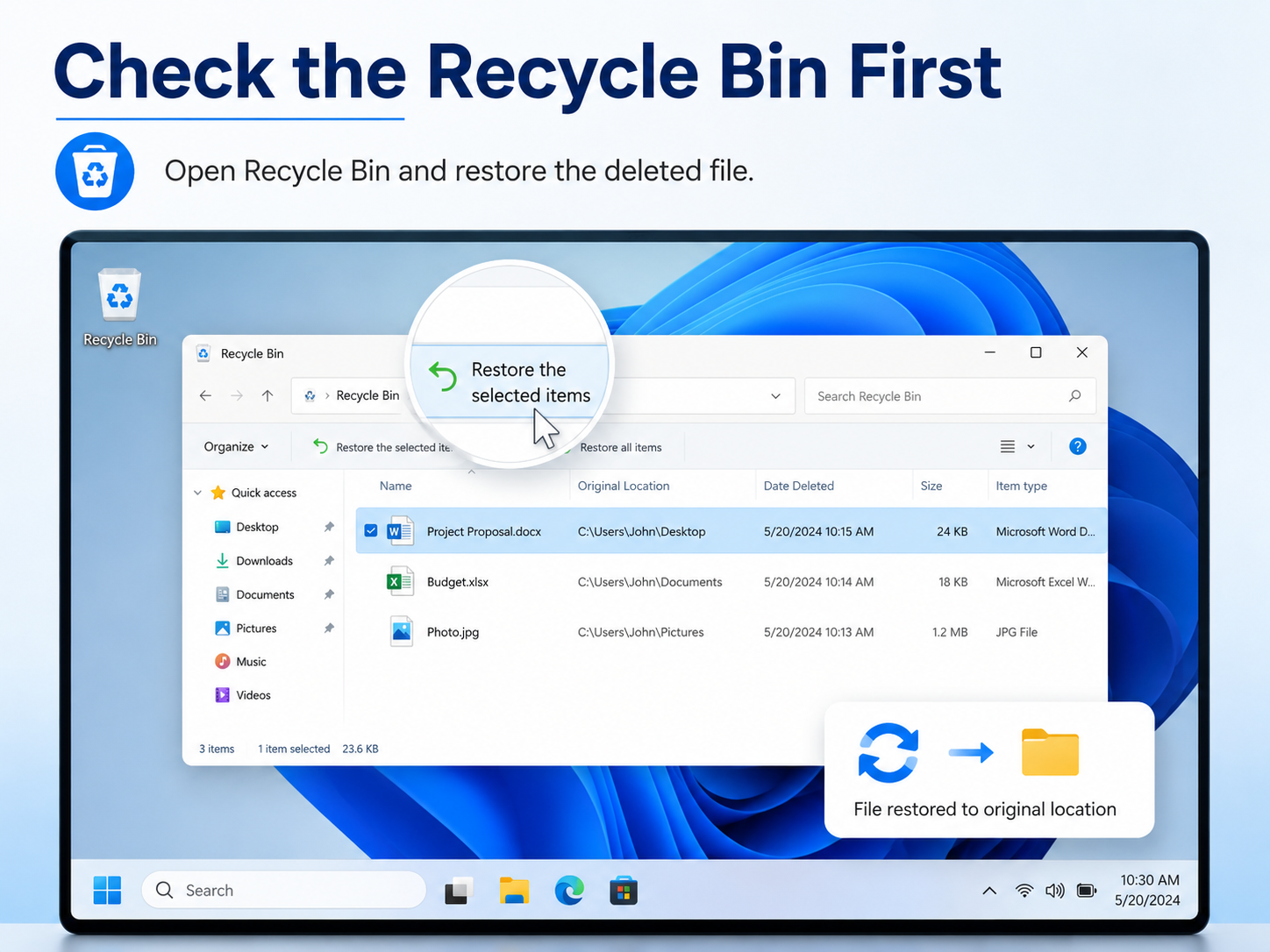
When a file is deleted in Windows, it often goes to the Recycle Bin instead of being removed immediately. This makes the Recycle Bin the safest and easiest place to start when trying to recover a deleted file.
Open the Recycle Bin from your desktop and look for the file you accidentally deleted. If there are many items, you can sort them by name, deletion date, original location, or file type to make searching easier.
Once you find the file, right-click it and choose Restore. Windows will usually return it to the folder where it was originally stored.
Keep in mind that some files may bypass the Recycle Bin. For example, files deleted with Shift + Delete, files removed from certain external drives, or very large files may be permanently deleted instead.
You should also check the Recycle Bin before downloading recovery software or making advanced system changes. In many cases, the file is still there and can be recovered within seconds.
Regularly checking before emptying the Recycle Bin is also a good habit. If an important file was deleted by mistake, keeping the Recycle Bin intact gives you a simple second chance to restore it without using additional tools.
2. Stop Using the Drive Immediately
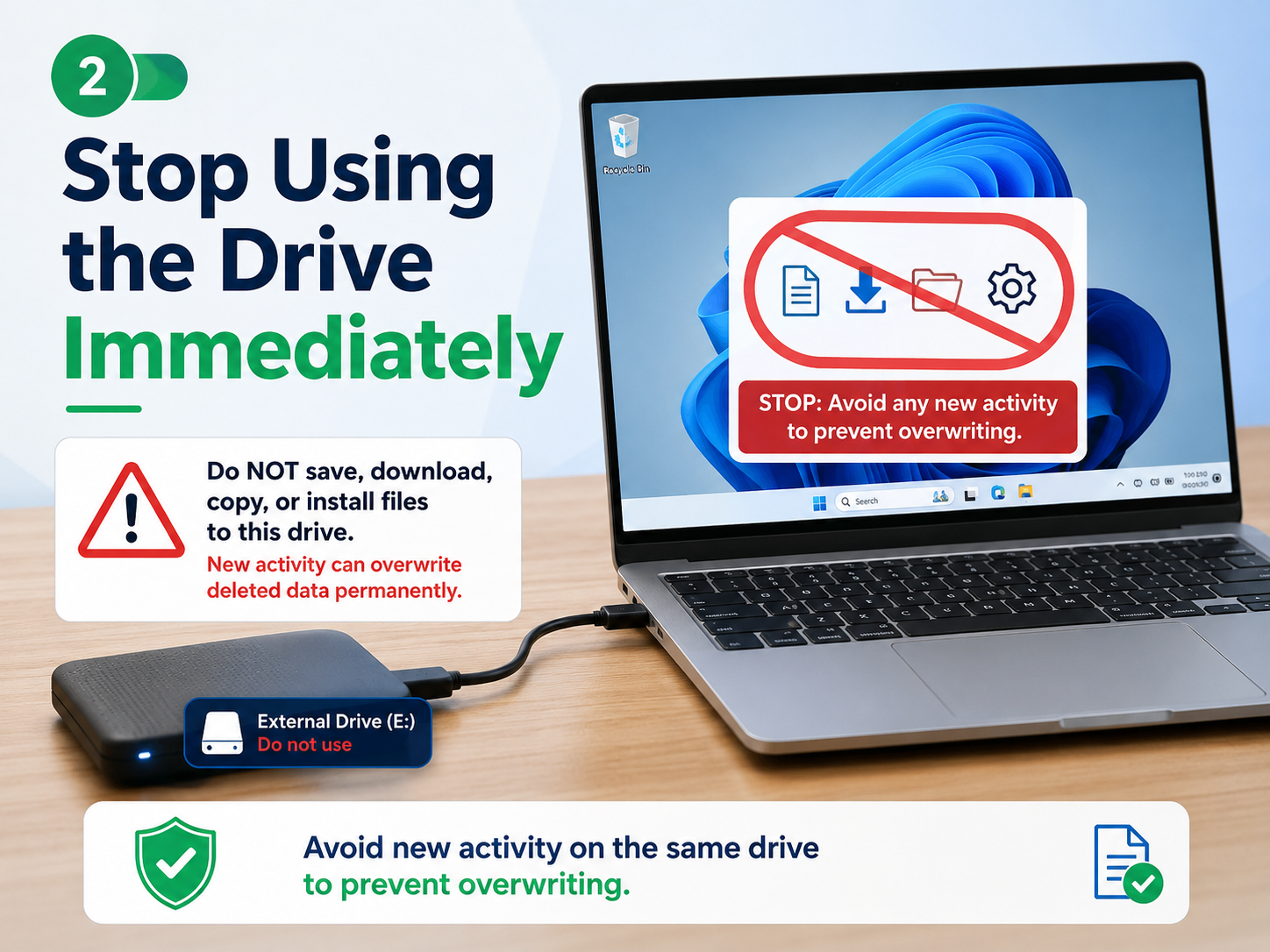
If the deleted file is not in the Recycle Bin, one of the most important things you can do is stop using the affected drive as much as possible.
When Windows deletes a file, the data may not disappear from the storage device immediately. Instead, the system often marks that space as available for new data. Until that space is overwritten, some or all of the deleted file may still be recoverable.
Continuing to download files, install programs, copy videos, or save documents to the same drive can overwrite the deleted data and reduce the chances of successful recovery.
This is especially important if the missing file was stored on a secondary drive, USB drive, or external storage device. Disconnecting the drive until you are ready to attempt recovery can help prevent unnecessary writes.
If the deleted file was on your main Windows drive, completely avoiding usage may not be practical because Windows continues writing temporary files and system data in the background. Still, you should minimize activity as much as possible.
Do not install recovery software on the same drive from which you are trying to recover files.
Acting quickly and reducing new writes can make a significant difference when attempting to recover recently deleted data safely.
3. Use Windows Backup and Previous Versions
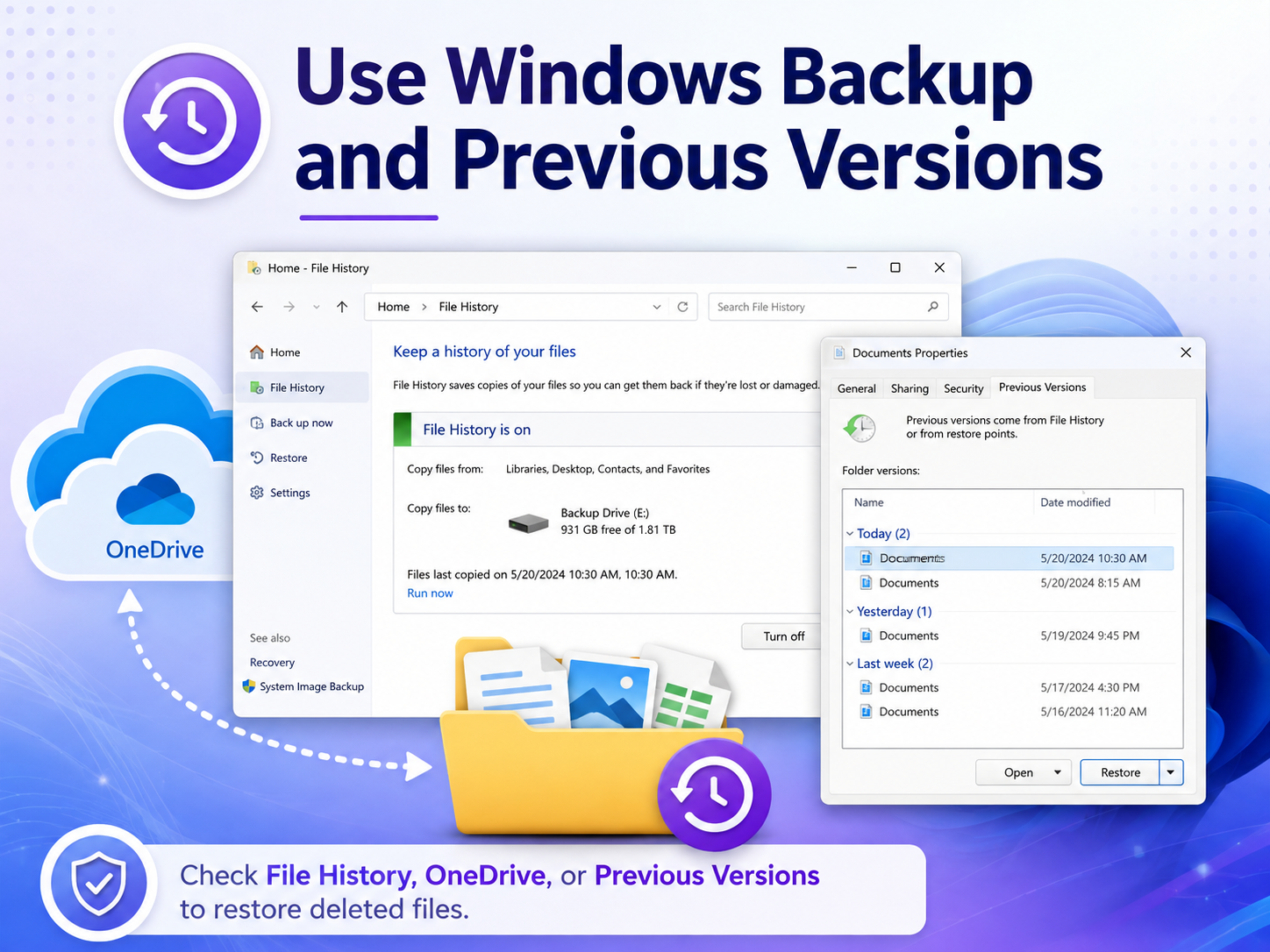
Before using file recovery software, check whether Windows or another backup service already has a copy of your missing file.
If you use File History, Windows may have automatically saved older versions of files stored in supported folders. You can search for File History in Windows settings and browse available backups to see whether the deleted file is available.
You can also right-click the folder where the file was originally stored, open Properties, and check the Previous Versions tab. If Windows has a restore point or backup containing an older version of the folder, you may be able to recover the file from there.
Cloud services such as OneDrive can also be useful. If the folder was synced, check the OneDrive website and its Recycle Bin. Deleted cloud files may remain recoverable for a limited period.
Other backup tools or external drives should also be checked before attempting deeper recovery methods.
Using an existing backup is usually safer than scanning a drive for deleted data because it does not depend on whether the original storage blocks have already been overwritten.
This is also a good reminder to keep regular backups. A simple backup system can turn a stressful accidental deletion into a quick restore process with minimal risk.
4. Use Trusted File Recovery Software Carefully
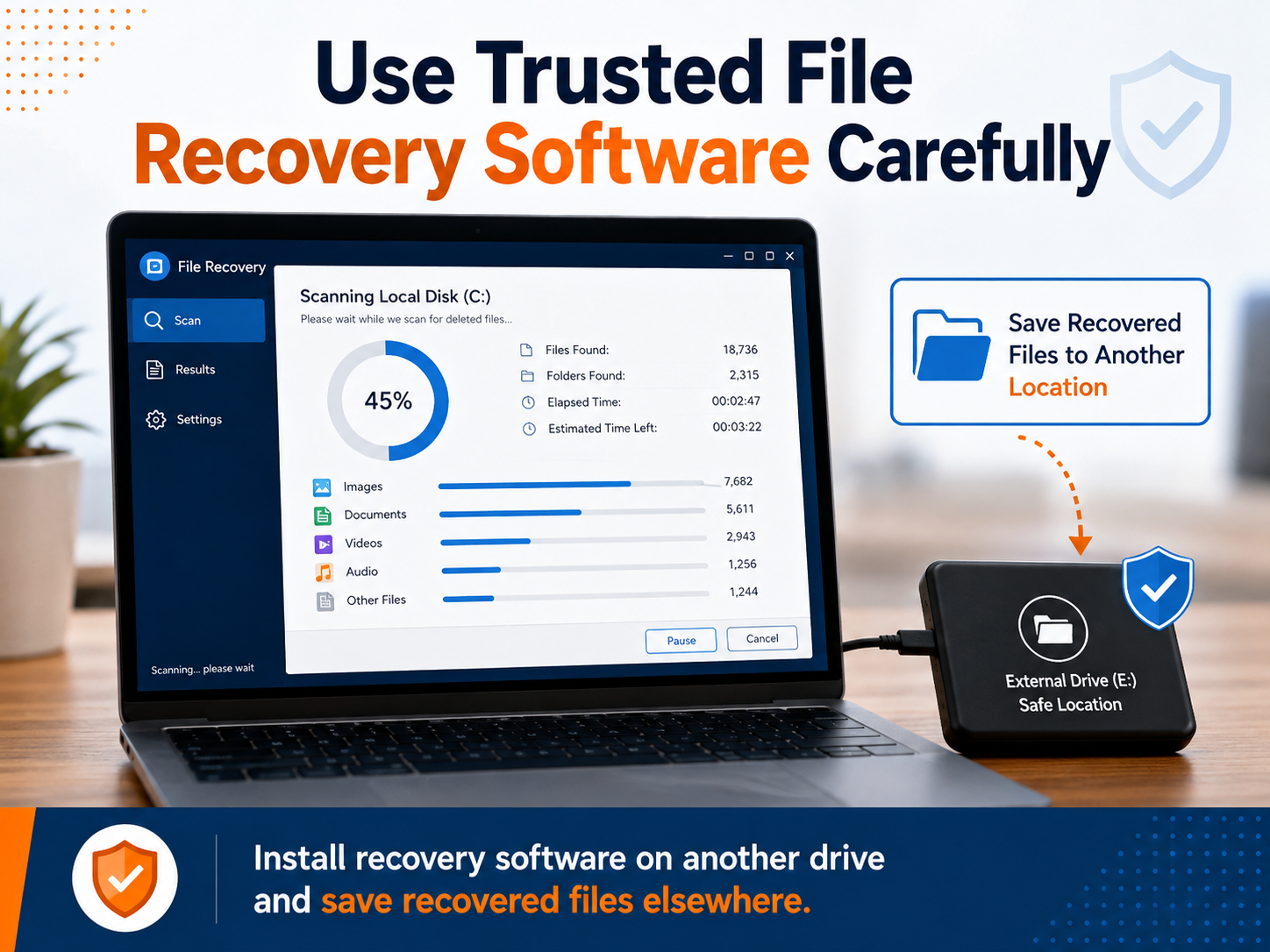
If the file is not available in the Recycle Bin or any backup, file recovery software may be able to help. These tools scan storage devices for data that Windows no longer lists as active files.
Choose a reputable recovery program from a trusted developer. Avoid random websites offering unknown “free recovery” tools, especially those that ask you to disable security software or install additional programs.
Whenever possible, install the recovery software on a different drive from the one containing the deleted file. For example, if you are recovering data from an external USB drive, install the recovery program on your main computer drive instead.
The same rule applies when saving recovered files. Do not restore them back to the original drive during the recovery process. Save them to another drive so you do not accidentally overwrite other deleted data that may still be recoverable.
Start with a normal or quick scan if the software provides that option. A deeper scan may take longer but can sometimes find additional files.
Recovery is never guaranteed. Files may be damaged or incomplete if their data has already been overwritten.
Use recovery software carefully and avoid repeated unnecessary scans, especially when the storage device appears unstable or physically damaged.
5. Know When to Stop and Seek Professional Help

Not every data loss problem should be handled with home recovery software. Sometimes continuing to use a damaged drive can make the situation worse.
If a hard drive is making clicking, grinding, or unusual mechanical noises, stop using it immediately. These sounds can indicate physical failure. Repeatedly powering on the drive may cause additional damage and reduce the chance of recovering important files.
You should also avoid repeated recovery attempts if the storage device disappears from Windows, disconnects frequently, becomes extremely slow, or is not detected correctly.
For highly valuable data such as business documents, family photos, research files, or other irreplaceable information, professional data recovery may be safer than experimenting with multiple tools.
Professional recovery services may have specialized equipment for dealing with damaged drives, failed controllers, and other hardware problems that normal software cannot fix.
Before choosing a recovery service, research its reputation, privacy practices, pricing process, and whether it provides an evaluation before charging for recovery.
Data recovery can never be guaranteed, even professionally, so prevention is still the best strategy.
After recovering your files, consider setting up automatic backups using File History, cloud storage, or an external drive to reduce the risk of losing important data again.
Disclaimer
The information provided in this article is for general educational and informational purposes only. File recovery results can vary depending on the type of storage device, how the file was deleted, whether new data has overwritten the original file, and the condition of the drive.
Avoid installing recovery software or saving recovered files on the same drive whenever possible, as this may overwrite deleted data. If a hard drive is physically damaged, making unusual noises, or contains extremely important information, consider stopping further attempts and contacting a professional data recovery service.
We are not responsible for data loss, corrupted files, hardware damage, privacy issues, or other problems that may occur while following the methods described in this guide. Always maintain regular backups of important files to reduce the risk of permanent data loss.