SSD vs HDD: Which Storage Is Better for Your Computer?
SSD and HDD both have their own advantages, and the right choice depends on what you need from your computer. SSDs are much faster, quieter, more power-efficient, and better for everyday performance. HDDs, however, offer more storage space at a lower price, which makes them useful for large files and backups. SSDs are also more resistant to physical shocks because they do not have moving parts. For most users, using an SSD as the main drive is the better option. If you need extra storage, combining an SSD with an HDD can give you a good balance of speed, capacity, and cost.
Speed and Performance
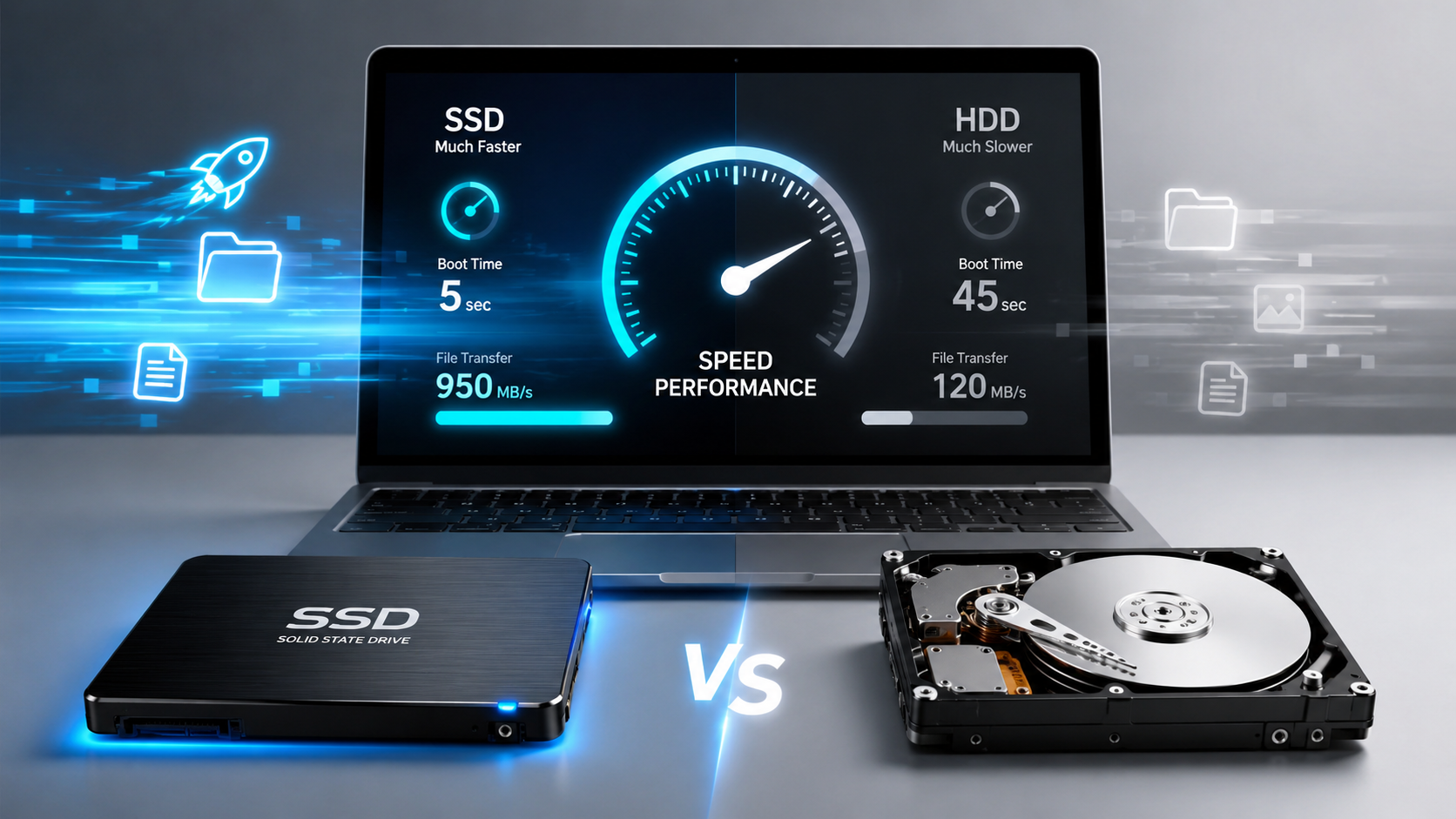
When it comes to speed, SSDs are clearly ahead of traditional HDDs. An SSD can read and write data much faster because it does not depend on moving mechanical parts. This difference is easy to notice in everyday use.
If your computer has an SSD, Windows can usually boot faster, apps open more quickly, and files load with less delay. Tasks such as installing software, copying large files, opening games, or working with heavy programs also feel smoother compared to a system running on an HDD.
HDDs, on the other hand, use spinning disks and a moving read/write head. Because of this mechanical design, they take more time to access data. This can make older computers feel slow, especially when several programs are running at the same time.
For normal web browsing or basic office work, an HDD can still do the job, but an SSD provides a much more responsive experience. If you want to improve the overall speed of an older computer, replacing the main HDD with an SSD is often one of the most noticeable upgrades you can make.
For users who care about fast boot times and smoother performance, SSD is the better choice.
Storage Capacity and Price
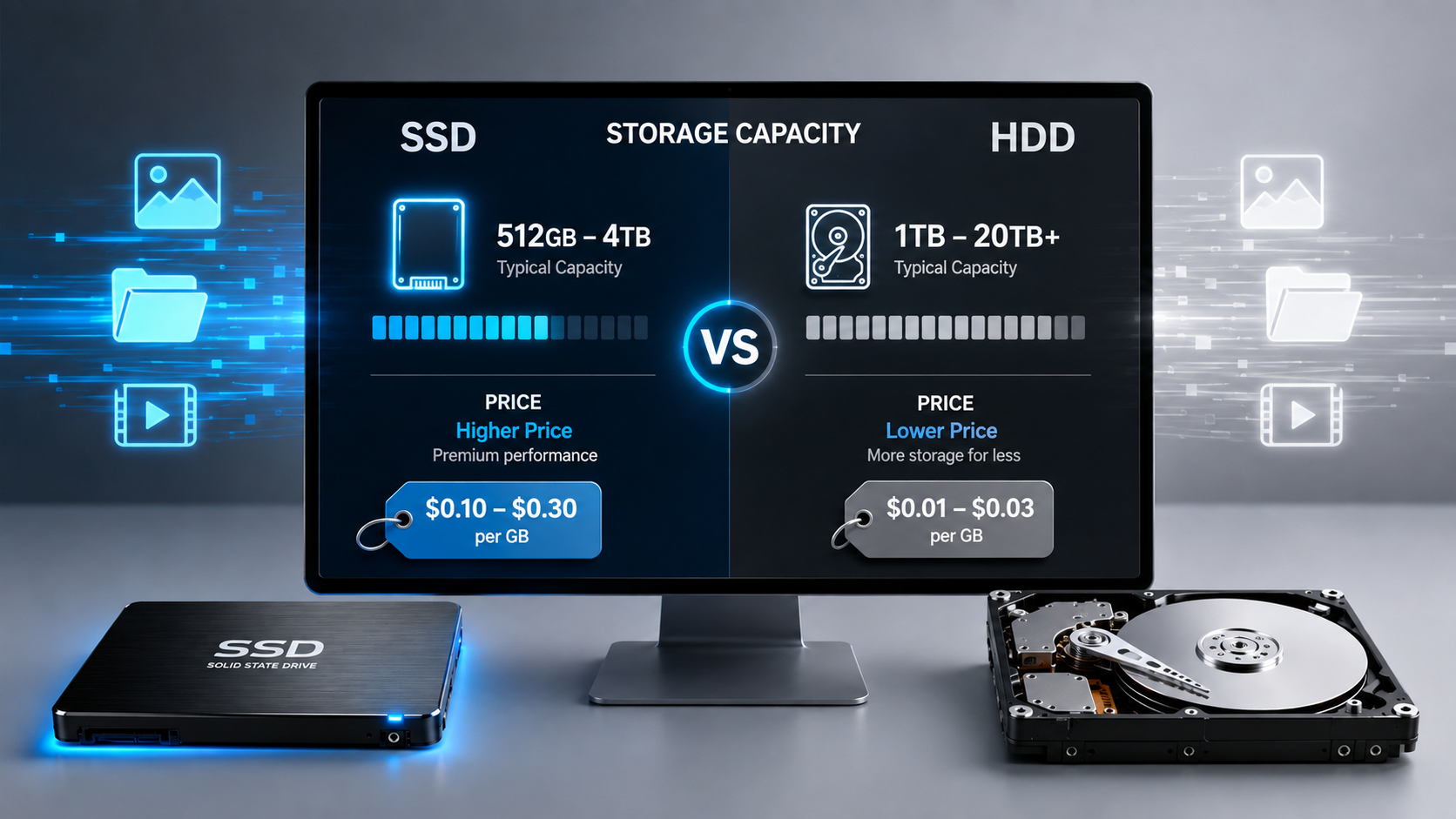
Storage capacity and price are two important factors when choosing between an SSD and an HDD. In most cases, HDDs offer more storage space for a lower price, which makes them a good option for users who need to store large amounts of data without spending too much.
For example, if you want to keep movies, photos, backups, games, or other large files, an HDD can give you more capacity within the same budget. This is especially useful for desktop users who need several terabytes of storage.
SSDs are generally more expensive per gigabyte, although prices have become much more affordable over the years. The advantage is that you are paying for better speed, faster loading times, and a more responsive computer.
If your budget is limited, a smaller SSD can be used for Windows and important apps, while an HDD can be used for large files and backups. This combination gives you both speed and storage capacity without making the system too expensive.
For users who mainly need affordable bulk storage, HDD is still a strong choice. But if performance matters more than maximum capacity, SSD usually provides better overall value.
Durability and Lifespan
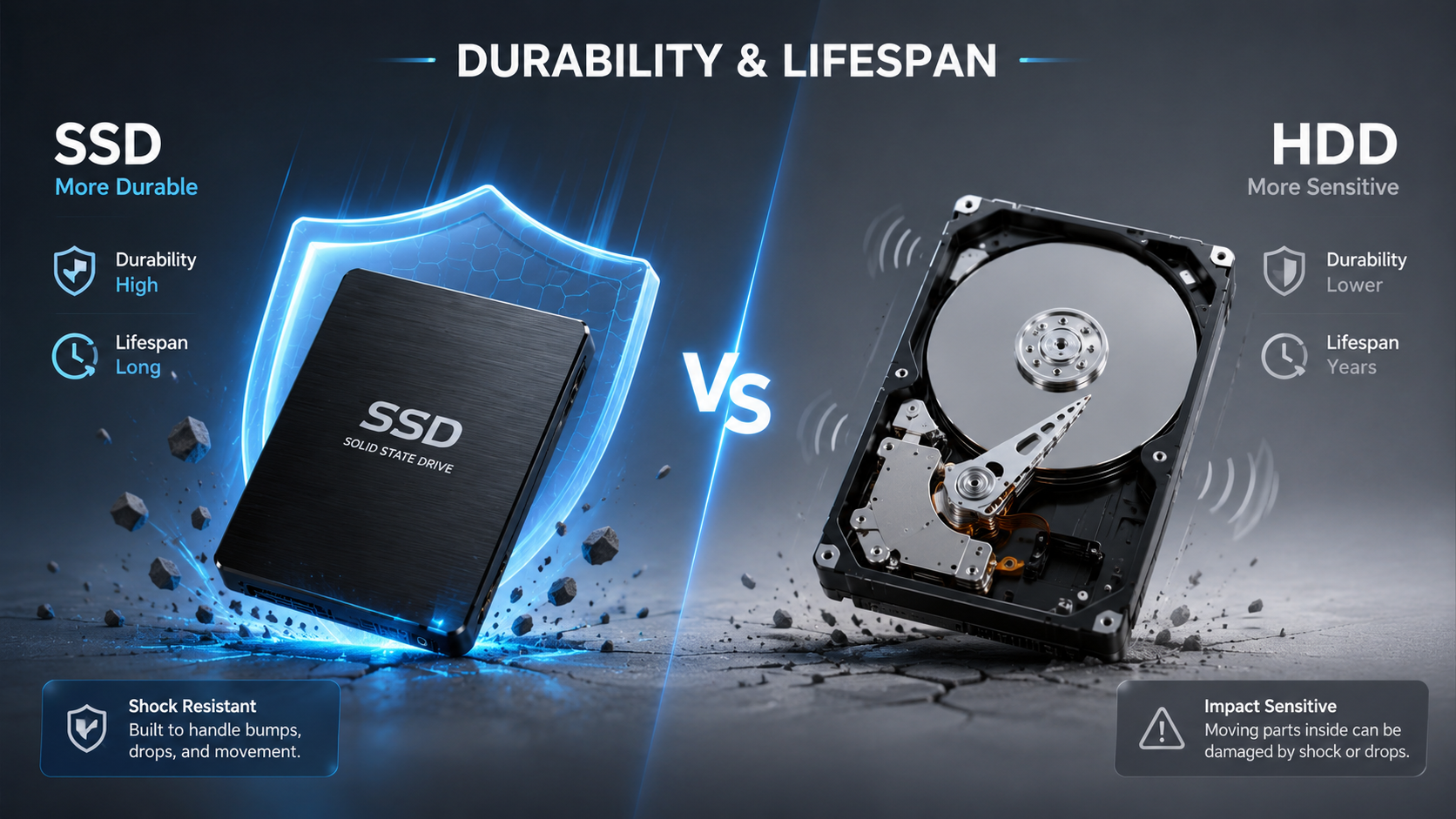
When comparing SSDs and HDDs, durability is another important factor to consider. SSDs are generally more resistant to physical shocks because they do not contain moving mechanical parts. This makes them a good choice for laptops and portable computers that are frequently carried from one place to another.
HDDs use spinning disks and a moving read/write head. Because of this mechanical design, a strong impact or sudden movement can sometimes damage the drive or cause data loss, especially while the drive is running.
SSDs also handle vibration better and are usually quieter during operation. However, SSDs are not unlimited in lifespan. Their memory cells can only handle a certain amount of data writing over time, although modern SSDs are designed to last for many years under normal everyday use.
HDDs can also last for several years if they are used carefully and kept at a safe temperature. Mechanical wear, however, may eventually cause failure.
For most users, both drives can offer a long service life. SSDs are generally better for durability and portability, while HDDs remain useful for long-term storage and backups.
Noise, Heat and Power Consumption
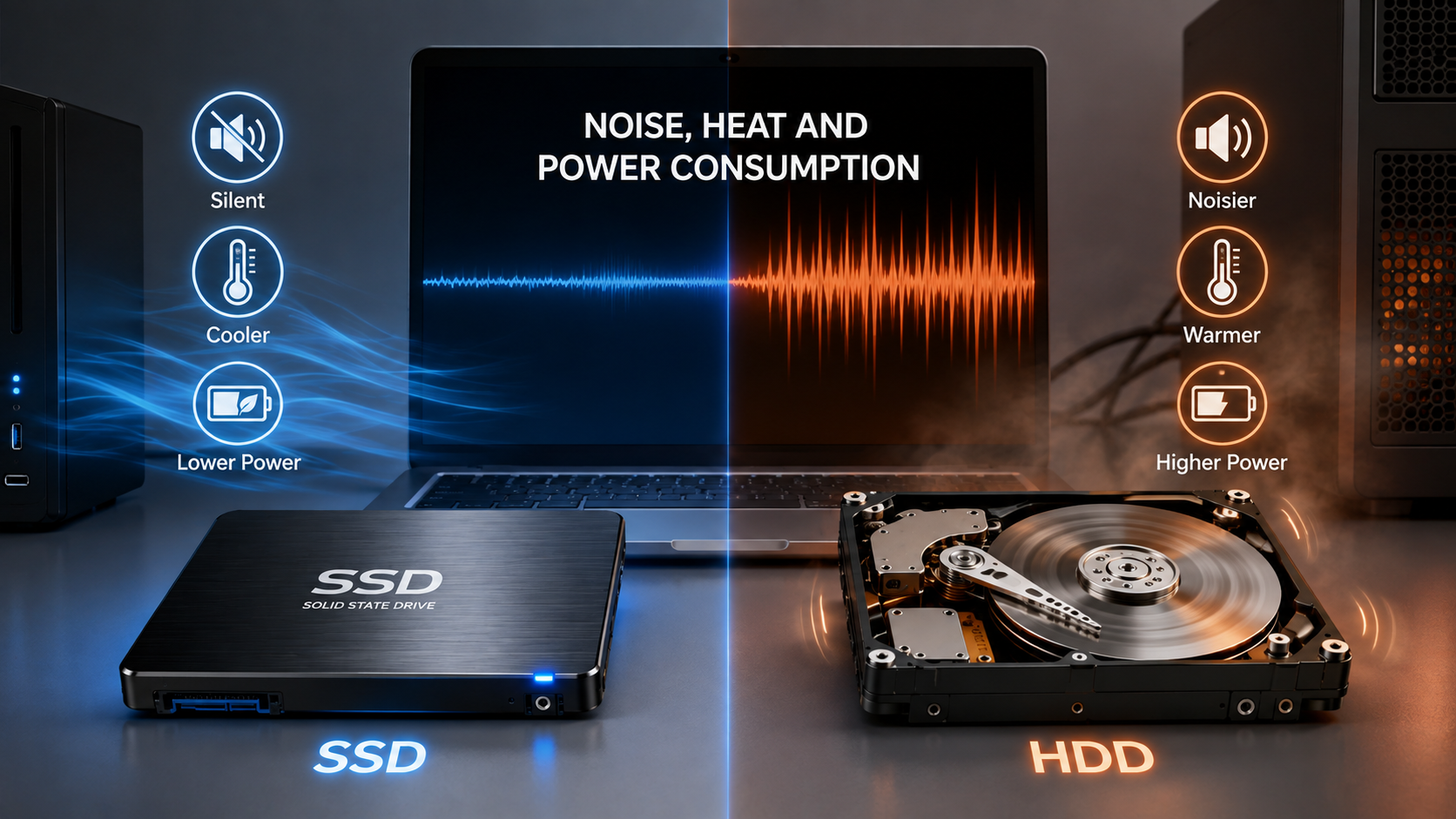
Another major difference between SSDs and HDDs is how much noise, heat, and power they produce during use. SSDs are completely silent because they do not have any moving parts. This makes them a great choice for users who prefer a quiet computer setup.
HDDs use spinning disks and a moving read/write head, so they can produce a small amount of noise and vibration while working. In older or heavily used hard drives, this sound may become more noticeable.
SSDs also generally use less power than traditional HDDs. This can be especially useful in laptops, where lower power consumption may help improve battery life. Since SSDs do not rely on mechanical movement, they also tend to produce less heat during normal use.
HDDs can generate more heat because of their spinning components, particularly during long file transfers or heavy workloads. Good airflow inside the computer can help keep temperatures under control.
If you want a quieter, cooler, and more energy-efficient computer, an SSD is usually the better option. HDDs are still useful, but SSDs have a clear advantage in this area.
Which One Should You Choose?
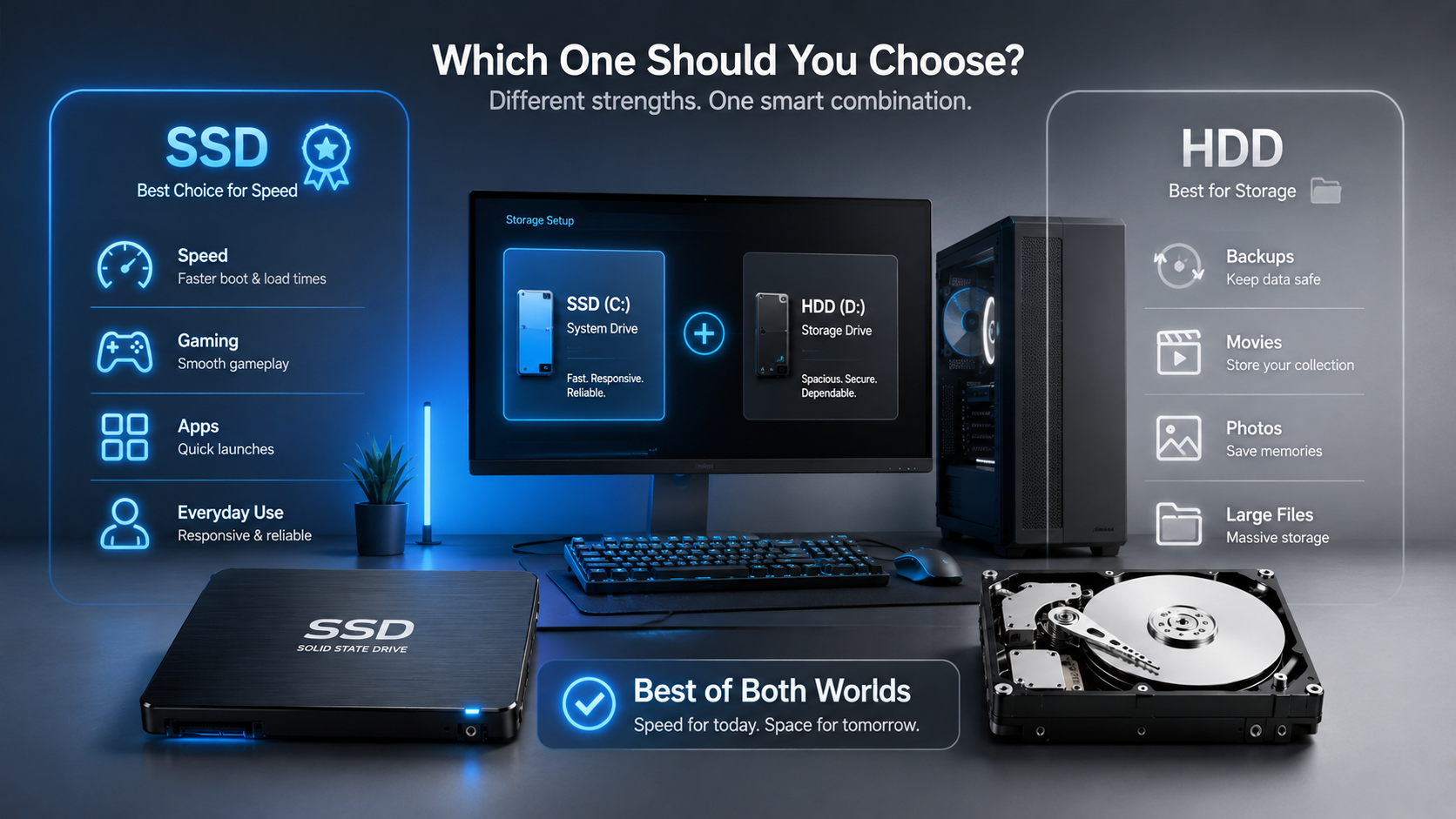
Choosing between an SSD and an HDD depends mainly on your budget, storage needs, and how you use your computer.
If you want faster boot times, quick app loading, smoother multitasking, and better overall performance, an SSD is the better choice. It is especially useful for Windows, gaming, video editing, programming, and everyday work where speed matters.
An HDD is a better option if you need a large amount of storage at a lower cost. It works well for storing movies, photos, backups, documents, and other large files that do not require very fast access.
For many users, the best setup is to use both. You can install Windows and important programs on an SSD for speed, while keeping large files and backups on an HDD. This gives you a good balance between performance and storage capacity.
If you are buying a new computer today, choosing an SSD as your main drive is usually the smarter option. You can always add an HDD later if you need extra storage space.
Disclaimer
The information provided in this article is for educational and informational purposes only. SSD and HDD performance, durability, lifespan, power consumption, and pricing can vary depending on the brand, model, capacity, and usage conditions.
Before replacing or upgrading your computer storage, make sure to back up all important files. If you are not comfortable installing a storage drive yourself, consider getting help from a qualified technician.
We are not responsible for any data loss, hardware damage, compatibility issues, or other problems that may occur while following the information provided in this guide. Always check your computer or motherboard specifications before purchasing a new SSD or HDD.
All product names, trademarks, and brand names mentioned belong to their respective owners.