How to Fix a Laptop That Keeps Overheating
A laptop that keeps overheating can become slow, noisy, uncomfortable to use, and may even shut down unexpectedly. Some heat is normal during gaming, video editing, or other demanding tasks, but constant overheating usually means the cooling system or software needs attention.
The first thing to check is the laptop’s airflow. Most laptops use small fans and vents to remove heat from the processor and other components. Dust can slowly collect around these vents and reduce airflow. Check the bottom and side vents and make sure they are not blocked. Avoid using your laptop directly on a bed, pillow, blanket, or sofa because these soft surfaces can cover the air intake. A hard, flat desk is usually better for cooling.
You can carefully clean the external vents with a soft brush or compressed air. If the fan makes unusual noises or the laptop is several years old, professional internal cleaning may also be useful. In some older systems, the thermal paste between the processor and heatsink may need replacement, but this should generally be handled by someone with proper repair experience.
The second important step is reducing unnecessary system load. Open Task Manager and check whether any application is using unusually high CPU or GPU resources. Close programs you do not need, remove unnecessary startup applications, and reduce the number of browser tabs and extensions running in the background.
Heavy games, video editing software, and rendering programs naturally produce more heat. During normal tasks, using a Balanced power mode can help prevent the processor from running at maximum performance unnecessarily.
Keep Windows and important device drivers updated. You can also check your laptop manufacturer’s official support page for relevant firmware or BIOS updates, but follow the instructions carefully when installing them.
Malware or unwanted software can sometimes run continuously in the background and increase CPU usage, so performing a scan with a trusted security tool can also help.
If your laptop still becomes extremely hot while doing simple tasks, constantly shuts down, or the fan is not working correctly, a hardware problem may be involved. In that situation, professional inspection is safer than continuing to use the device.
Keeping the cooling system clean, improving airflow, and reducing unnecessary software load can help your laptop stay cooler and maintain smoother performance.
1. Clean the Cooling System and Improve Airflow
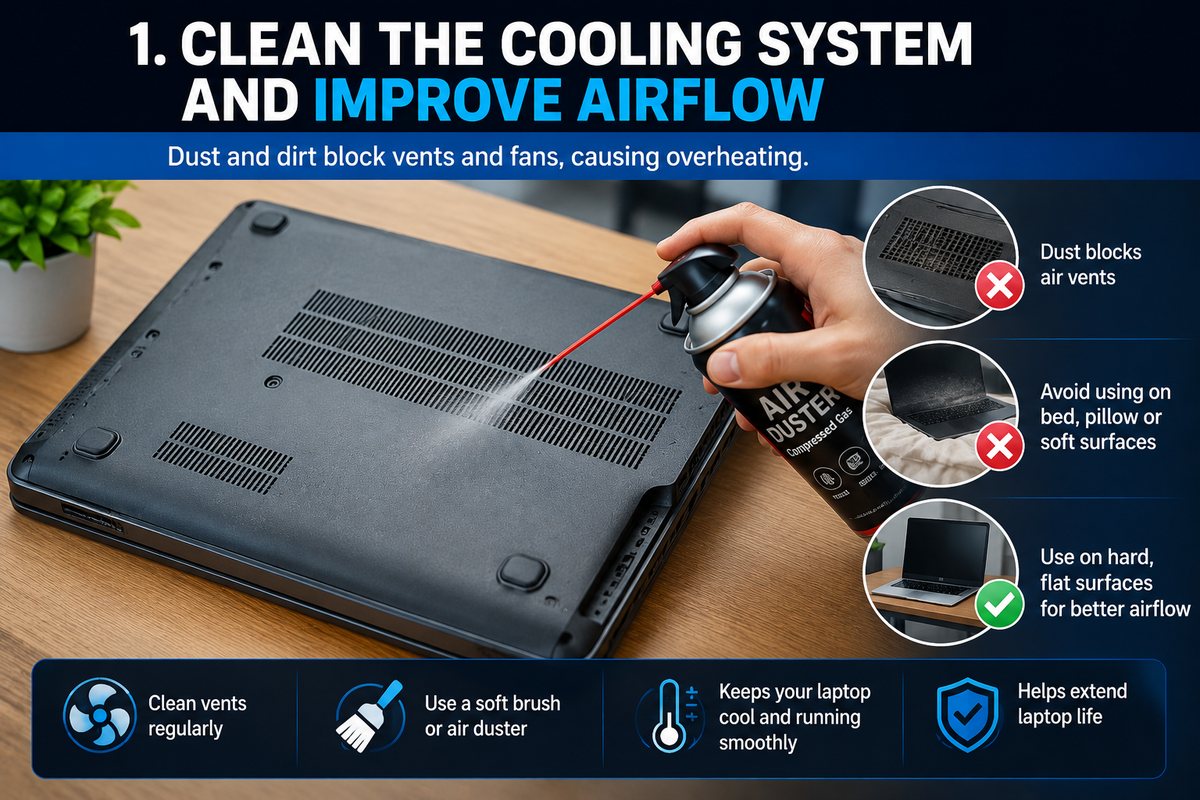
If your laptop keeps overheating, the first thing you should check is its cooling system and airflow. Laptops use small fans and vents to remove heat generated by the processor, graphics chip, and other internal components. Over time, dust, pet hair, and dirt can collect inside these vents and around the cooling fan. When this happens, hot air cannot escape properly, and the laptop may start running at higher temperatures.
Start by checking the air vents on the bottom and sides of your laptop. Make sure they are not blocked while you are using the device. Avoid using a laptop directly on a bed, sofa, pillow, or blanket because soft surfaces can block the air intake. A hard, flat surface such as a desk allows air to move more freely.
You can gently clean the external vents using a soft brush or compressed air. If you are not comfortable opening the laptop, avoid taking it apart yourself because internal components and connectors can be delicate.
In older laptops, dried thermal paste between the processor and cooling system can also contribute to high temperatures. Replacing thermal paste requires proper tools and experience, so professional servicing may be safer.
You should also listen to the fan. If it makes unusual grinding noises, does not spin properly, or runs at full speed constantly, the cooling system may need inspection.
A laptop stand can sometimes improve airflow by raising the bottom of the device. Cooling pads may also help in certain situations, but they should not be used as a replacement for fixing a blocked or damaged cooling system.
Keeping the vents clean and allowing enough airflow can significantly reduce temperature and help your laptop maintain stable performance.
2. Reduce Heavy Load and Check Software or Power Settings
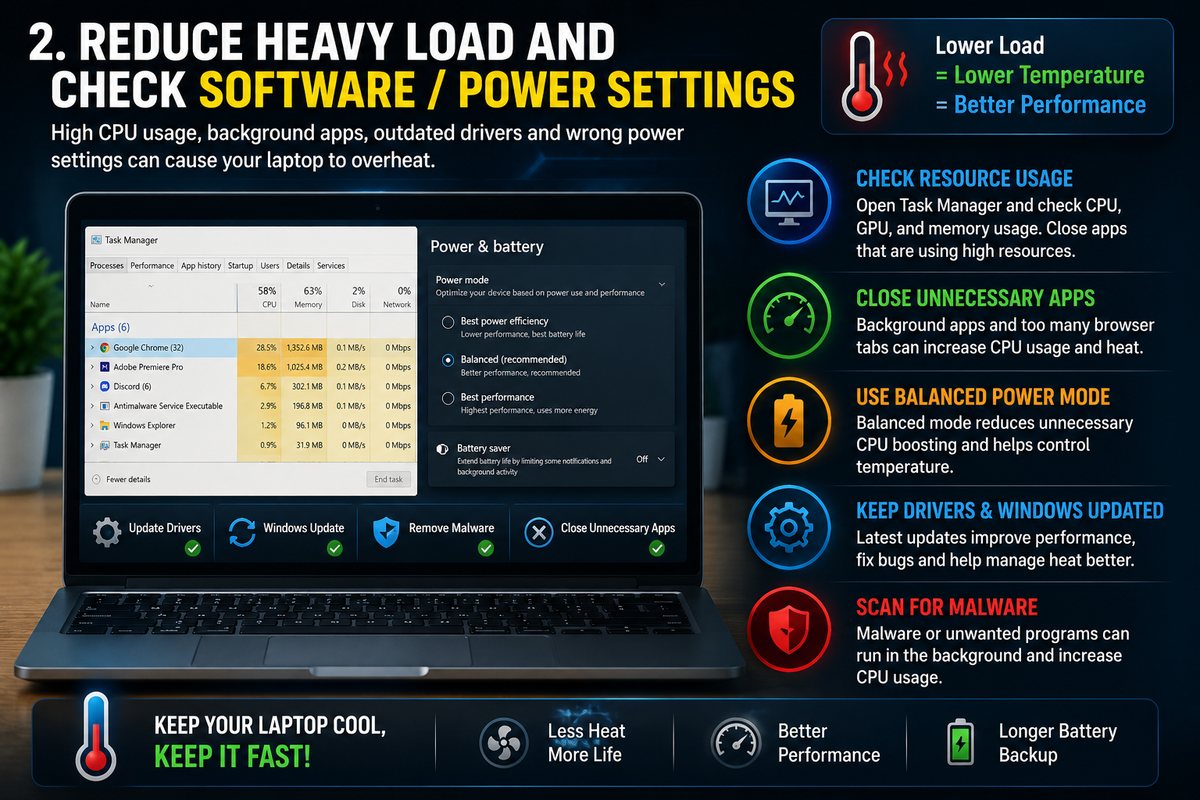
Laptop overheating is not always caused by dust or blocked vents. Sometimes the processor or graphics chip is simply working harder than necessary because of heavy applications, background processes, or incorrect power settings.
Start by opening Task Manager in Windows and checking CPU, memory, and GPU usage. If a program is using a very high percentage of the processor for a long time, it can generate a lot of heat. Close applications that you do not need and remove unnecessary programs from the startup list.
Web browsers can also consume significant resources when many tabs or extensions are open. Closing unused tabs and disabling unnecessary extensions can reduce the load on your laptop.
Gaming, video editing, 3D rendering, and other demanding tasks naturally increase temperature. Some heat during these activities is normal, but the laptop should not constantly shut down, freeze, or become extremely hot.
Using the Balanced power mode instead of maximum performance can help reduce unnecessary processor boosting during normal use. Some laptops also include manufacturer software with quiet, balanced, or performance profiles. Choose the mode that best matches what you are doing.
Keep Windows, graphics drivers, chipset drivers, and other important software updated. In some cases, manufacturers also release BIOS or firmware updates that improve fan control or power management. Only install BIOS updates from the laptop manufacturer’s official support page and follow the instructions carefully.
Malware can also cause high CPU usage in the background. Running a scan with Windows Security or another trusted security solution can help identify suspicious activity.
If the laptop becomes very hot even when you are only browsing or doing nothing, there may be a deeper hardware issue. A failing fan, damaged heat pipe, degraded thermal paste, or battery problem can all cause abnormal temperatures.
Reducing unnecessary system load, keeping software updated, and using sensible power settings can help your laptop run cooler, quieter, and more efficiently.
Disclaimer
The information in this article is provided for general educational and informational purposes only. Laptop temperatures, cooling systems, fan behavior, BIOS settings, and repair procedures can vary depending on the manufacturer and model.
Do not open your laptop, replace thermal paste, or attempt internal repairs unless you have the proper tools and experience. Incorrect handling may damage components or affect the warranty. Always use official drivers, BIOS updates, and manufacturer support resources.
We are not responsible for hardware damage, data loss, warranty issues, overheating problems, or other issues that may occur while following this guide. If your laptop shuts down unexpectedly, smells unusual, has a swollen battery, or continues overheating after basic troubleshooting, stop using it and contact a qualified technician or the manufacturer.