A slow Android phone does not always need a factory reset. In most cases, performance can improve by making a few simple changes. Start by freeing up storage space and removing apps you no longer use. Clear unnecessary app cache, restart your phone, and keep Android as well as installed apps updated. Limiting background activity, reducing animations, and removing heavy widgets or live wallpapers can also help. It is also important to check for suspicious apps or malware that may be using system resources. If your phone still remains slow after trying these steps, then a factory reset can be considered as the last option.
Check Available Storage Space on Your Android Phone
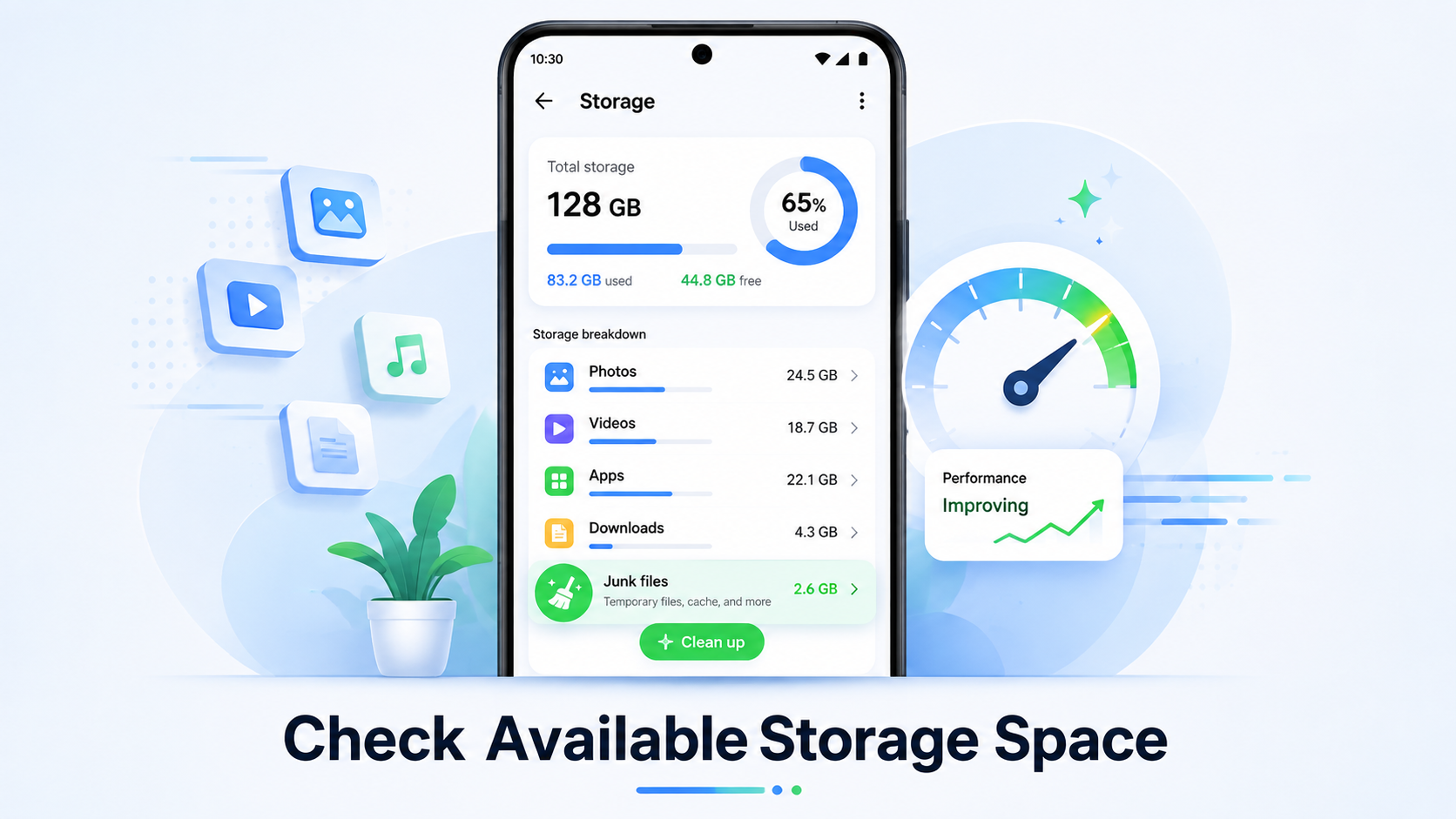
If your Android phone is running slow, low storage could be one of the biggest reasons behind it. Over time, photos, videos, apps, WhatsApp files, downloads, and cached data can take up a large amount of space without you even noticing.
When your phone storage becomes almost full, Android gets less free space to manage temporary files and background tasks. This can make apps open slowly, cause lag while switching between apps, and sometimes even lead to freezing or crashes.
To check your storage, open Settings and look for the Storage option. On some Android phones, it may be available under Device Care, Battery and Device Care, or a similar section. You will be able to see how much space is used by apps, images, videos, documents, and other files.
Start by deleting unnecessary screenshots, old downloads, duplicate photos, and large videos you no longer need. You can also uninstall apps that you rarely use.
For better performance, try to keep at least 10–20% of your phone’s storage free. A little extra free space can help your Android phone run more smoothly without needing a factory reset.
Remove Unused Apps from Your Android Phone
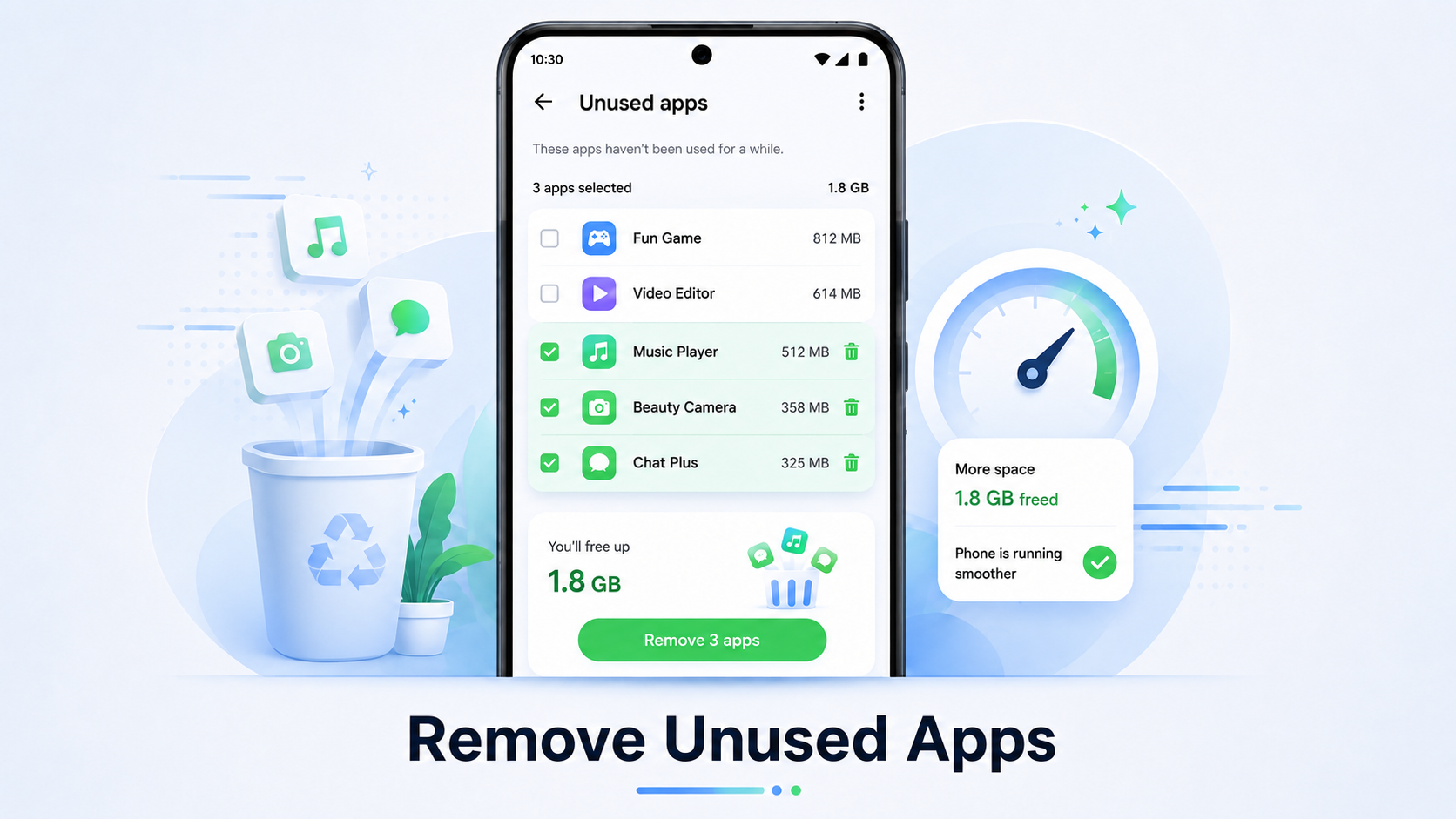
Unused apps can quietly slow down your Android phone, especially if you have installed a lot of them over time. Even when you are not actively using an app, some apps may continue running in the background, sending notifications, syncing data, or using system resources.
Start by checking which apps you actually use. Open Settings > Apps and go through the list carefully. You may be surprised to find games, shopping apps, editing tools, or other apps that you have not opened for months.
If you no longer need an app, uninstalling it is usually the best option. This can free up storage space and may also reduce background activity on your phone. On many Android devices, you can also check when an app was last used, which makes it easier to identify unnecessary apps.
Be careful when removing system apps or apps that came pre-installed with your phone. Some of them are required for important Android features. If an app cannot be uninstalled, you may have the option to disable it instead.
Keeping only the apps you actually use can make your phone cleaner, easier to manage, and potentially more responsive.
Clear App Cache Safely
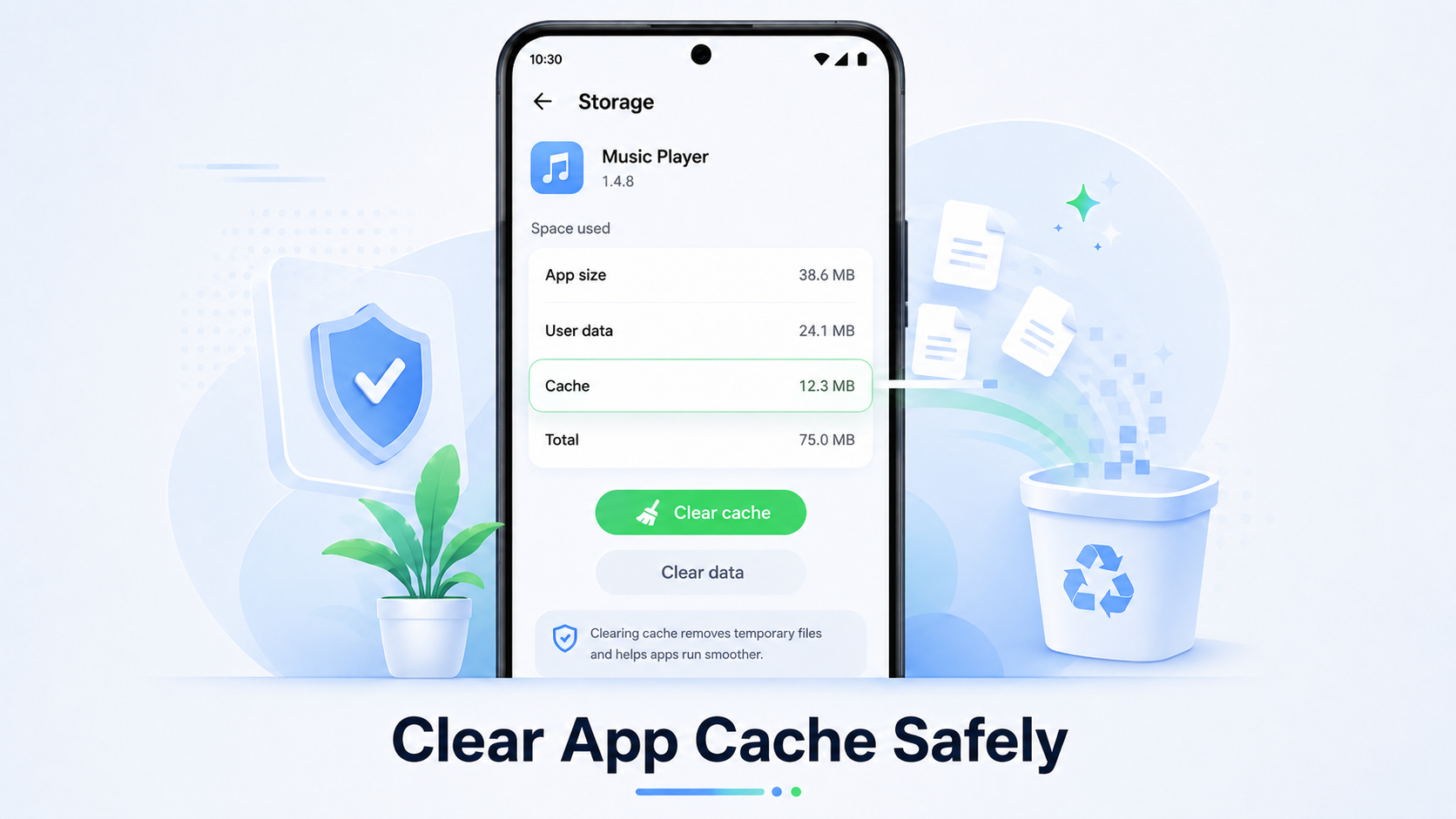
Over time, Android apps store temporary files called cache. These files help apps load faster, but if too much cached data builds up, it can sometimes take up unnecessary storage and may contribute to performance issues.
To clear an app’s cache, open Settings > Apps, select the app you want to clean, and then open Storage or Storage & Cache. From there, tap Clear Cache. The exact menu name may vary depending on your Android version or phone brand.
It is important to understand the difference between Clear Cache and Clear Data. Clearing the cache usually removes only temporary files and does not delete your account, saved preferences, or personal information. On the other hand, clearing app data can reset the app and may sign you out or remove locally stored settings.
You do not need to clear the cache every day. It is more useful when a specific app is running slowly, crashing, or using an unusually large amount of storage.
Also, avoid installing random “RAM cleaner” or “phone booster” apps just for this purpose. Android already includes built-in tools for managing storage and app data safely.
Restart Your Android Phone Regularly
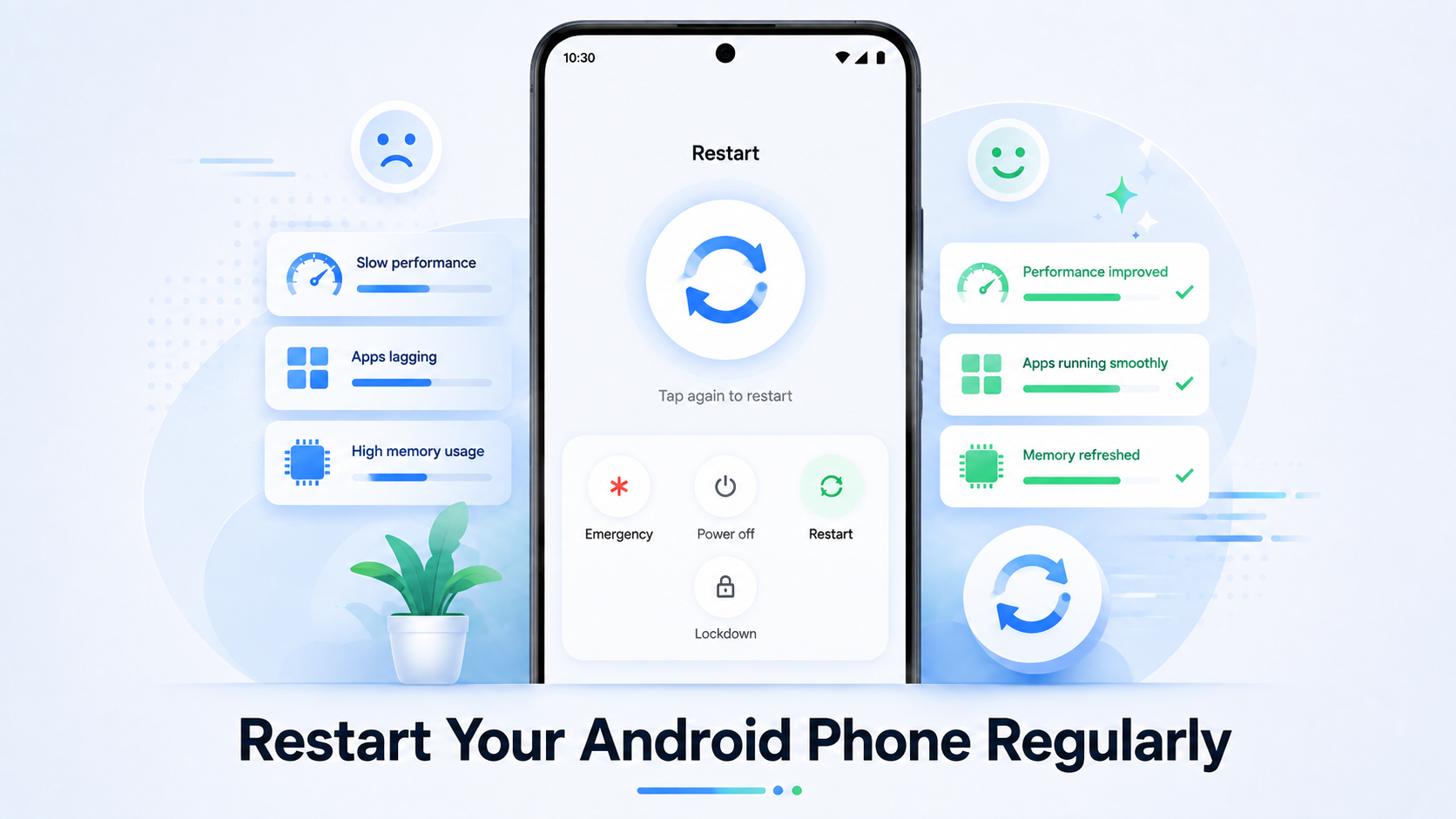
Restarting your Android phone may sound like a very basic solution, but it can actually help fix many small performance issues. If you keep your phone running for several days or weeks without restarting it, temporary background processes can build up and sometimes make the device feel slower.
A simple restart closes active apps, refreshes system processes, and clears some temporary memory. This can help if your phone is lagging, apps are taking longer to open, or the device feels less responsive than usual.
To restart your phone, press and hold the Power button and select Restart from the menu. On some Android devices, you may need to press the Power and Volume Up buttons together to see the restart option.
You do not need to restart your phone multiple times a day. Restarting it once every few days, or whenever you notice unusual lag, is usually enough.
Keep in mind that restarting will not fix serious storage, hardware, or software problems. However, it is a quick and safe troubleshooting step that should be tried before using more advanced solutions.
Making an occasional restart part of your routine can help keep your Android phone running smoothly.
Update Android and Installed Apps
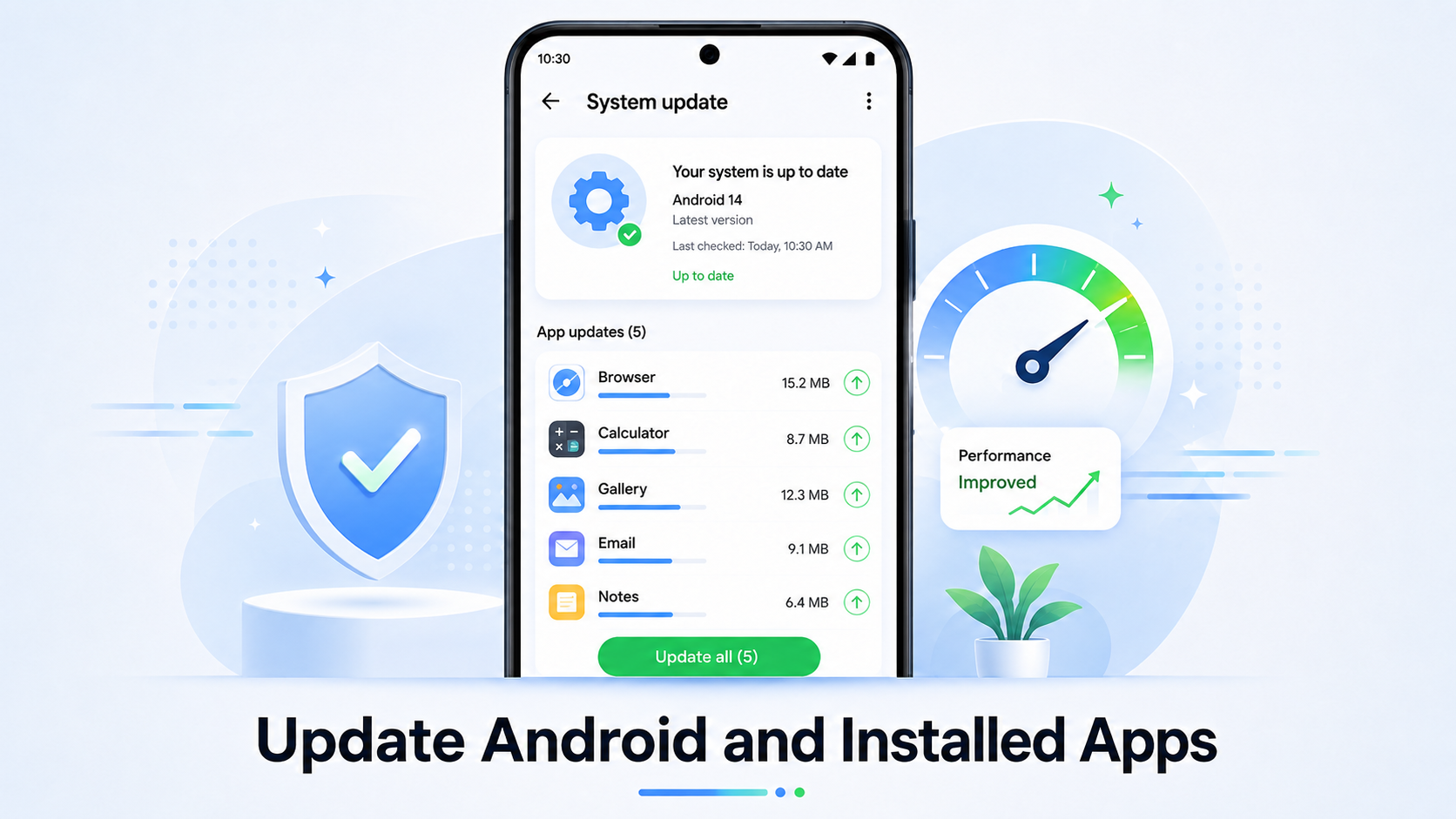
Keeping your Android phone and installed apps updated is another simple way to improve performance and avoid unnecessary problems. Software updates often include bug fixes, security improvements, and performance optimizations that can make your phone work more smoothly.
To check for an Android system update, open Settings and look for Software Update, System Update, or a similar option. The exact name may be different depending on your phone brand. If an update is available, make sure your phone has enough battery and is connected to a stable Wi-Fi network before installing it.
You should also keep your apps updated. Open the Google Play Store, tap your profile picture, and go to Manage apps & device. From there, you can see which apps have updates available.
Outdated apps may sometimes become slow, crash unexpectedly, or use more battery than usual. Developers regularly release updates to fix these issues and improve compatibility with newer Android versions.
However, it is a good idea to install updates from trusted sources only. Avoid downloading unknown APK files from random websites, as they may contain unsafe or modified software.
Regular updates can help keep your Android phone secure, stable, and responsive without requiring a factory reset.
Disable Unnecessary Background Apps
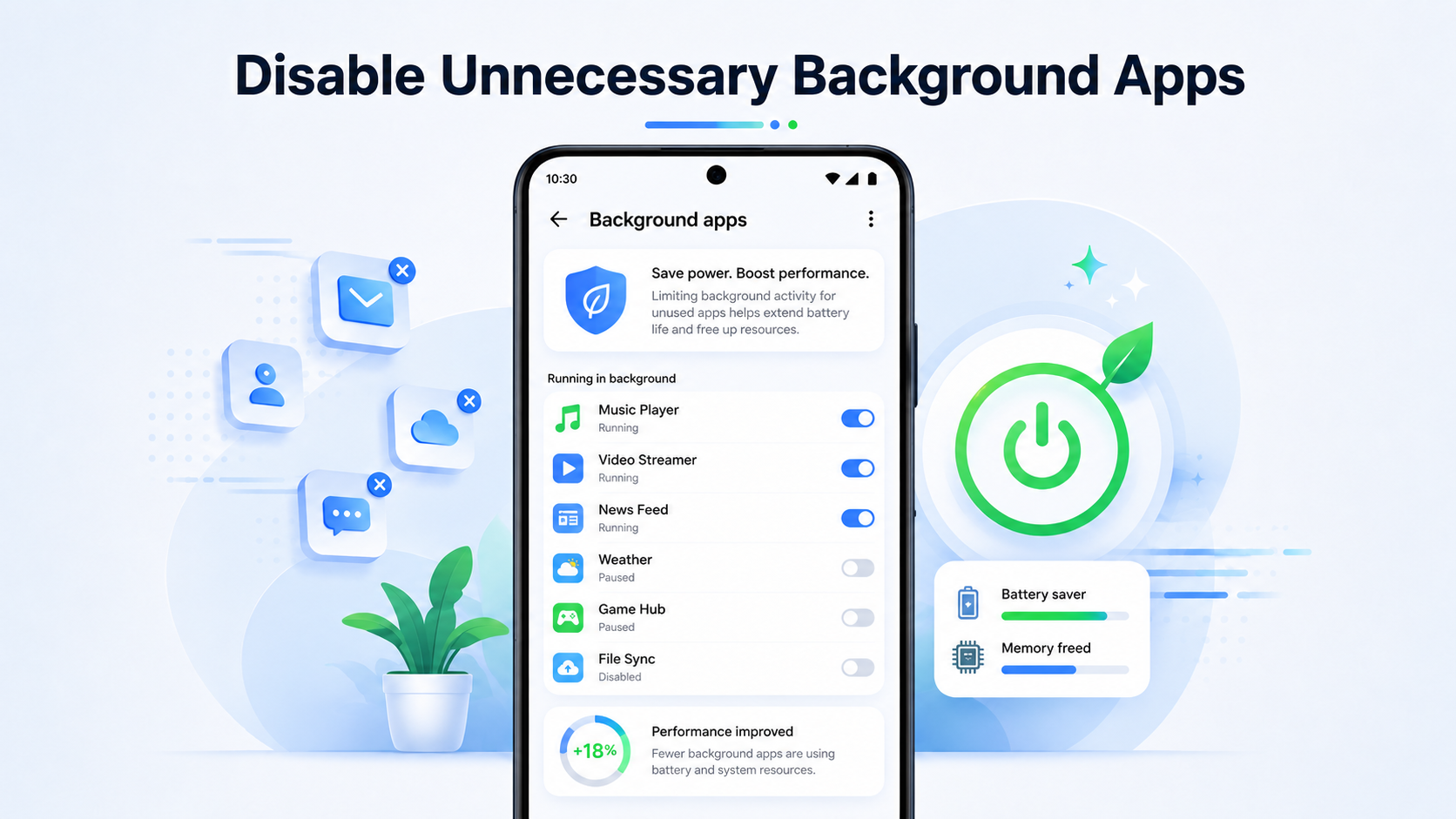
Some Android apps continue working in the background even when you are not actively using them. They may check for updates, sync data, send notifications, or refresh content automatically. If too many apps are doing this at the same time, your phone may feel slower and the battery can drain faster.
To manage background activity, open Settings > Apps and select an app that you do not need running all the time. Depending on your phone, you may see options such as Battery, Background Activity, or Background Usage Limits. From there, you can restrict unnecessary background activity.
You should be careful when restricting apps that you rely on for important notifications. For example, messaging, email, banking, or security apps may need background access to work properly.
It is better to focus on apps that you rarely use, such as old games, shopping apps, or entertainment apps that do not need to stay active throughout the day.
Also, avoid using aggressive task-killer apps. Android already manages memory automatically, and constantly forcing apps to close may sometimes make performance worse.
Reducing unnecessary background activity can help free system resources, improve battery life, and make your Android phone feel more responsive during everyday use.
Reduce Animations and Visual Effects
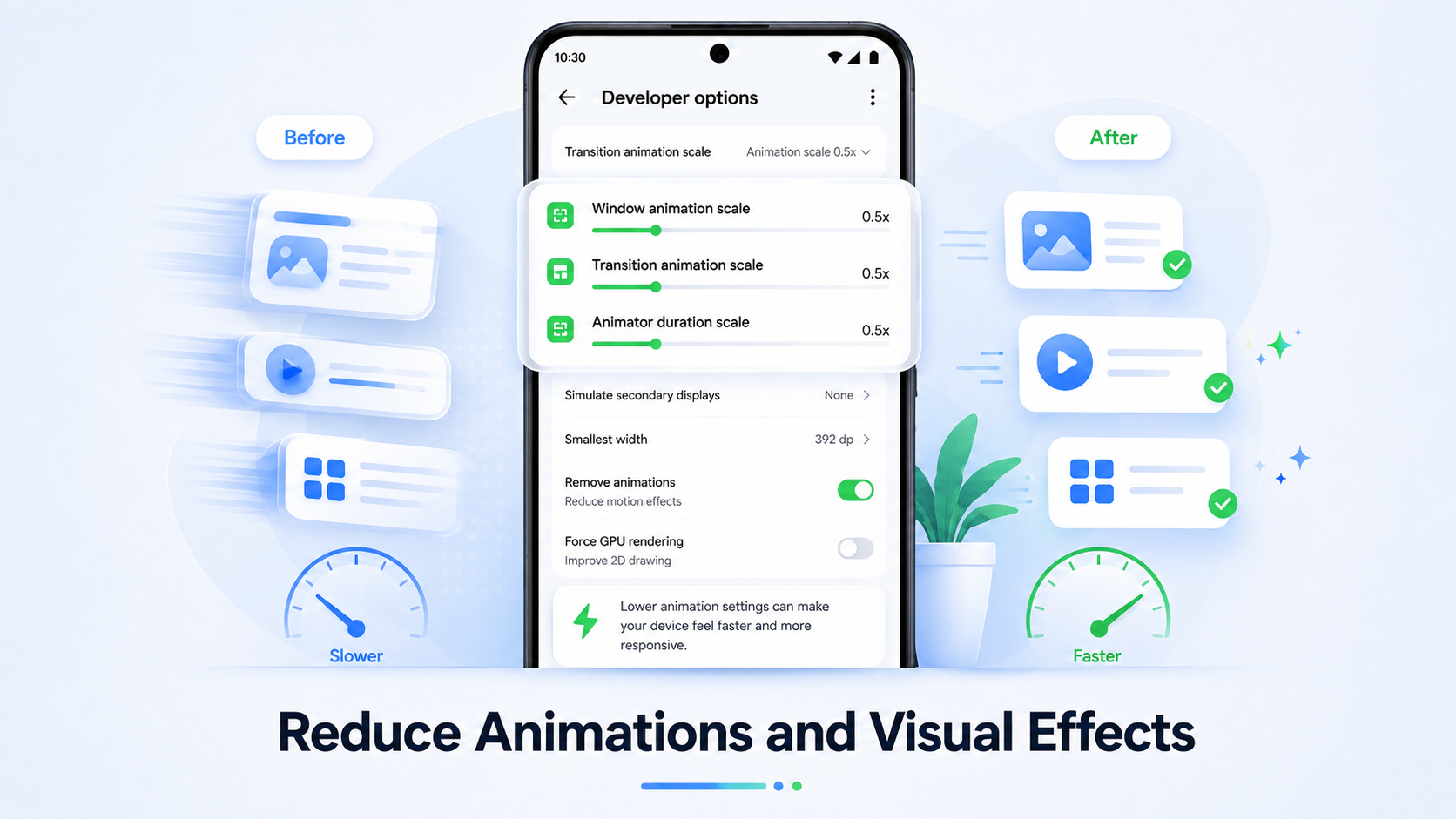
Android uses animations when you open apps, switch between screens, or close menus. These effects make the interface look smooth, but on an older or low-powered phone, they can sometimes make the device feel slower than it actually is.
You can reduce animation speed through Developer Options. First, open Settings > About Phone and tap Build Number several times until Developer Options are enabled. On some phones, this setting may be located under Software Information.
Next, open Developer Options and look for Window Animation Scale, Transition Animation Scale, and Animator Duration Scale. You can reduce these settings from the default value to 0.5x to make transitions feel faster.
It is usually better to reduce animations rather than completely disable them, because some apps and interface elements may look less smooth when animations are turned off.
Be careful while using Developer Options. It contains many advanced settings, so avoid changing options that you do not understand.
Reducing animations does not increase your phone’s actual processor speed, but it can make the device feel more responsive, especially if you are using an older Android phone.
Remove Unnecessary Widgets and Live Wallpapers
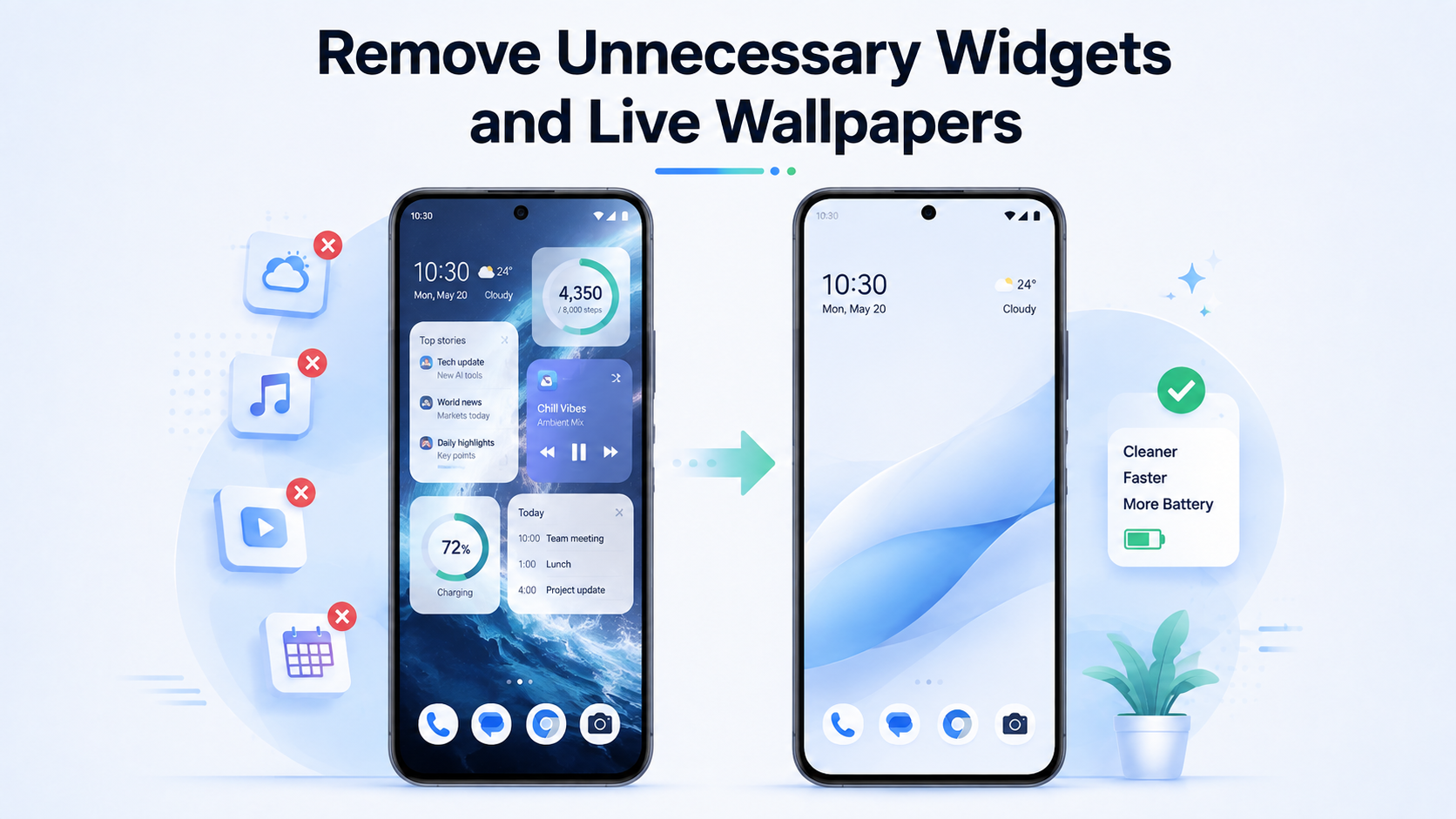
Home screen widgets and live wallpapers can make your Android phone look more attractive, but they may also use extra system resources in the background. Some widgets constantly refresh information such as weather, news, email, battery status, or social media updates. On older or budget Android phones, too many active widgets can sometimes make the device feel less responsive.
If your phone is running slowly, check your home screen and remove widgets that you rarely use. To remove a widget, press and hold it, then drag it to the Remove option. This does not uninstall the app; it only removes the widget from your home screen.
Live wallpapers can also use additional battery and graphics resources because they remain animated in the background. Switching to a simple static wallpaper may help reduce unnecessary activity, especially on phones with limited RAM or an older processor.
You do not need to remove every widget from your phone. Keep the ones that are genuinely useful and avoid filling multiple home screens with constantly updating content.
A cleaner home screen can reduce distractions and may help your Android phone feel smoother during everyday use.
Check for Malware or Suspicious Apps
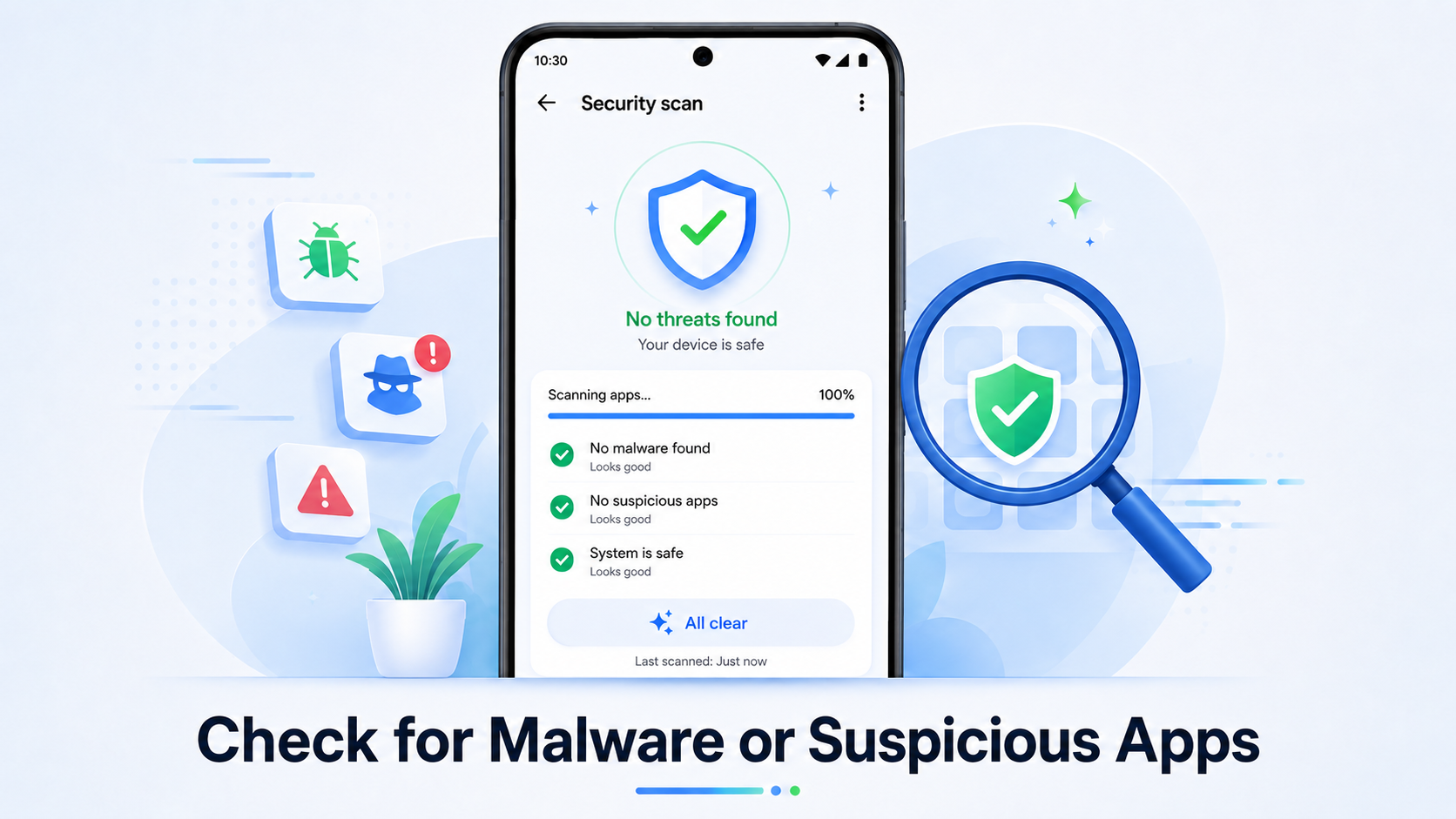
Sometimes an Android phone becomes slow because of a suspicious or poorly designed app running in the background. These apps may use extra battery, internet data, storage, or system resources without making it obvious to the user.
Start by checking recently installed apps. Open Settings > Apps and look for anything you do not recognize or no longer use. Pay special attention to apps installed from unknown websites or third-party APK sources.
You can also open the Google Play Store, tap your profile picture, and use Play Protect to scan your device for potentially harmful apps. Google Play Protect can help identify apps that may behave in unsafe or suspicious ways.
Other warning signs can include unusual pop-up ads, sudden battery drain, apps opening by themselves, or unexpectedly high mobile data usage. If you notice these problems after installing a particular app, consider uninstalling it.
Avoid downloading random “cleaner,” “booster,” or antivirus apps from unknown developers, as some of them may create more problems than they solve.
Keeping only trusted apps and reviewing app permissions from time to time can help protect your phone and may also improve overall performance.
When Should You Consider a Factory Reset?
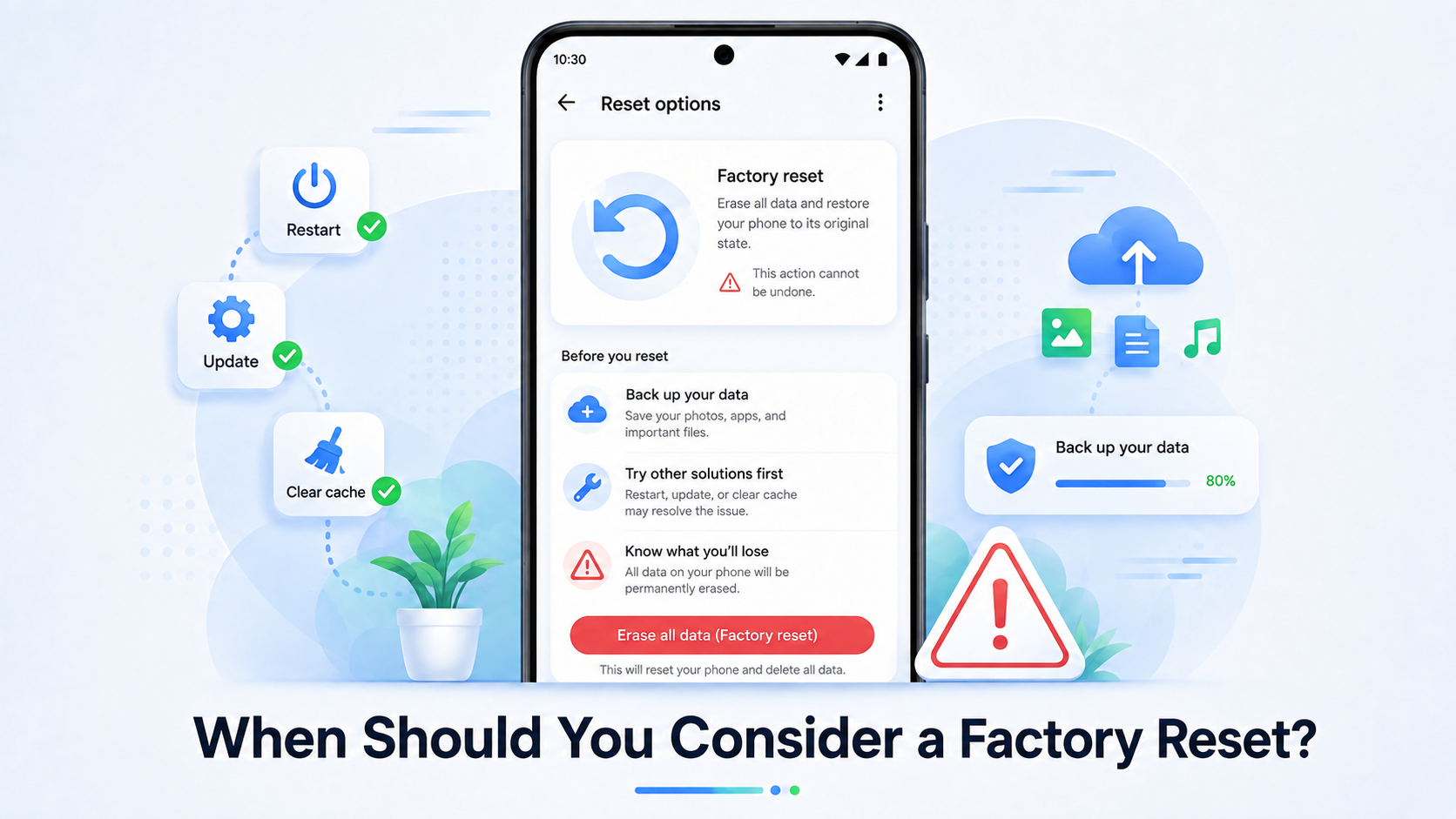
A factory reset should usually be your last option when trying to fix a slow Android phone. It removes your apps, accounts, settings, and most personal data from the device, returning the phone close to its original software state.
Before considering a reset, try simpler solutions first, such as freeing up storage, uninstalling unused apps, updating Android, clearing problematic app cache, and checking for suspicious apps. In many cases, these steps are enough to improve performance.
A factory reset may be useful if your phone continues to freeze, crash, restart unexpectedly, or remain extremely slow even after you have tried other troubleshooting methods. It can also help when software settings or corrupted app data are causing persistent problems.
Before resetting your phone, make sure you create a backup of important photos, videos, contacts, documents, and account information. You should also confirm that you know the Google account details linked to the device, as Android may ask for them after the reset.
Remember that a factory reset cannot fix every problem. If the slowdown is caused by old hardware, a weak battery, damaged storage, or limited RAM, the phone may still feel slow afterward.
How to Fix a Slow Android Phone Without Factory Reset
Introduction
A slow Android phone can be frustrating, especially when apps take too long to open, the screen starts lagging, or the phone freezes during normal use. The good news is that you do not always need to perform a factory reset to improve your phone’s performance.
In many cases, Android phones become slow because of low storage space, too many background apps, outdated software, unnecessary cache files, or heavy visual effects. These issues can often be fixed with a few simple changes.
Before deleting your personal data or resetting the entire phone, it is worth trying some basic troubleshooting steps. Freeing up storage, removing unused apps, updating your system, and checking background activity can make a noticeable difference.
In this guide, we will cover practical ways to speed up a slow Android phone without performing a factory reset. Most of these methods are easy to follow and do not require any advanced technical knowledge.
Frequently Asked Questions
Why is my Android phone suddenly running slow?
A phone can suddenly become slow because of low storage, too many apps running in the background, outdated software, a problematic app, or temporary system issues. Check recently installed apps and available storage first.
Does clearing cache make an Android phone faster?
Clearing the cache of a problematic app can sometimes improve performance, especially if the app has accumulated a large amount of temporary data. However, you do not need to clear every app’s cache regularly.
How much free storage should I keep on my Android phone?
Keeping around 10–20% of your internal storage free is a good general target. Having some available space allows Android to manage temporary files and apps more efficiently.
Do phone cleaner apps really improve performance?
Many cleaner and booster apps are unnecessary because Android already includes tools for managing storage and memory. Some third-party cleaner apps may also show excessive ads or consume additional resources.
Will restarting my phone delete anything?
No. A normal restart does not delete your photos, apps, contacts, or other personal data. It simply reloads the operating system and closes temporary processes.
Can an old Android phone become fast again?
You may be able to improve its performance by removing unnecessary apps, freeing storage, reducing animations, and keeping the software updated. However, older hardware can eventually limit how fast the phone can run.
Conclusion
You do not have to factory reset your Android phone every time it becomes slow. Simple steps such as freeing up storage, uninstalling unused apps, clearing unnecessary cache, updating Android, limiting background activity, and removing suspicious apps can help improve everyday performance.
Start with the easiest solutions and observe whether your phone becomes more responsive. Avoid changing advanced settings unless you understand what they do, and always keep important files backed up.
If your phone remains extremely slow after trying all of these methods, the problem may be related to aging hardware, limited RAM, battery condition, or internal storage. In that situation, a factory reset can be considered as a final software troubleshooting step.
Regularly managing your apps, storage, and software updates can help keep your Android phone running smoothly for a longer time.
Disclaimer
The information provided in this article is for educational and informational purposes only. The steps mentioned here are general Android troubleshooting methods and may vary depending on your phone brand, Android version, and device settings.
We recommend creating a backup of your important data before making any major changes to your device. Some settings, such as Developer Options, app data removal, or factory reset, should be used carefully.
We are not responsible for any data loss, software issues, device damage, or other problems that may occur while following the methods described in this guide. If you are unsure about any step or your phone continues to experience serious problems, consider contacting your device manufacturer or an authorized service center for professional assistance.
All product names, trademarks, and brand names mentioned in this article belong to their respective owners.